

Prerequisites
All you need to get started:- A TalkifAI account — free to create
- A microphone-enabled browser (Chrome or Edge recommended) — for testing voice agents `
When you sign up, TalkifAI automatically creates a default organization for you and adds free trial credits to your account. No API keys or credit card required to start.
Step 1: Create Your First Agent
1
Open Agent Builder
In the Studio sidebar, click Agents → Create Agent.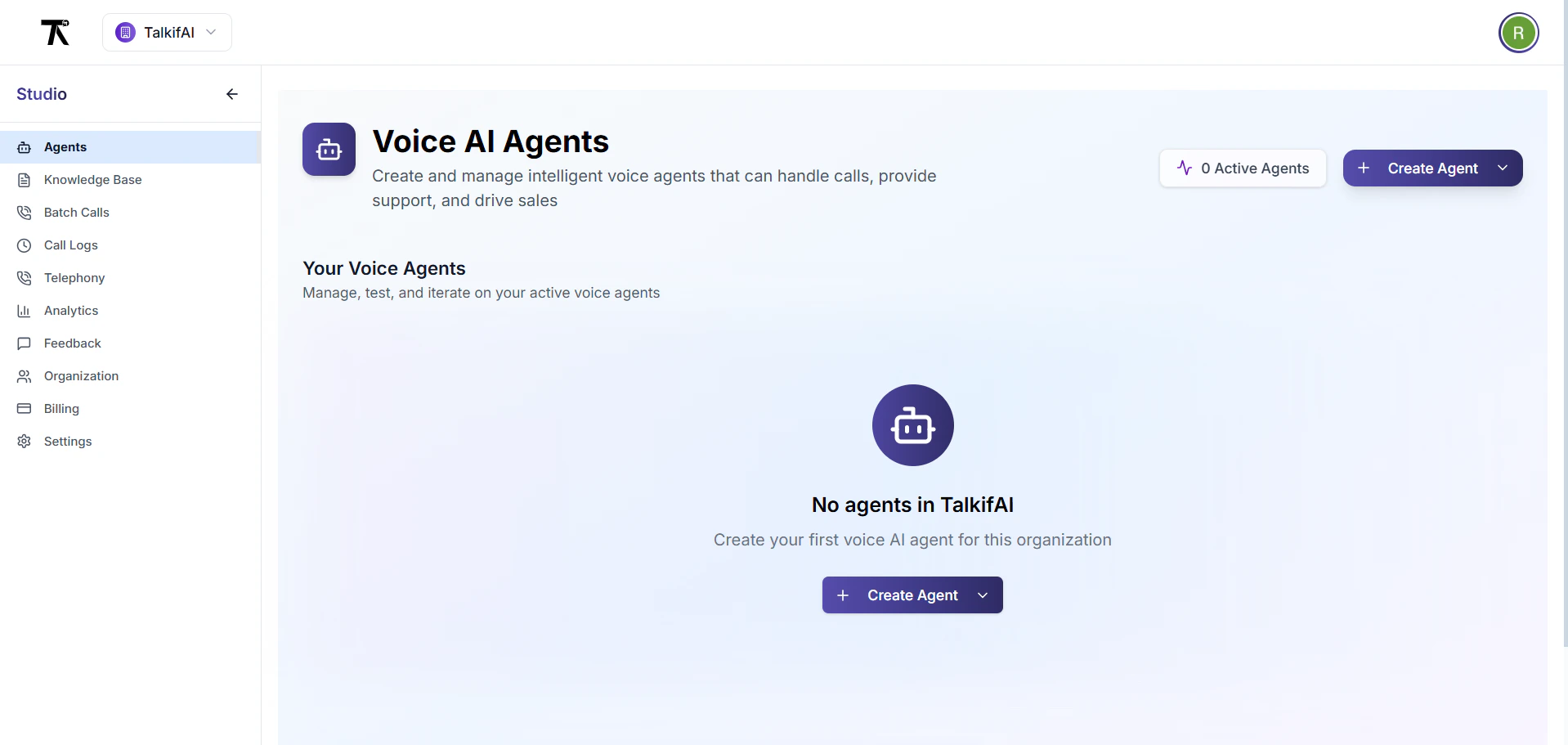
2
Choose Architecture
Select the agent type based on what you need: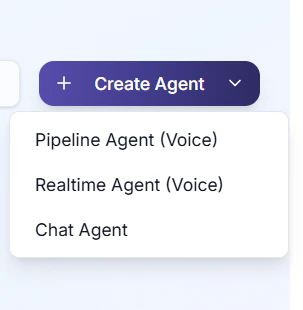
3
Configure the Agent
Fill in the basics:
- Name: e.g., “Customer Support Bot”
- System Prompt: Instructions for your agent’s behavior and personality
- LLM Model: GPT-4o, Gemini 1.5 Pro, Claude, etc.
- Voice: Choose a TTS voice (Cartesia, ElevenLabs, OpenAI TTS)
- Language: Select the spoken language
4
Test in Browser
Click Test Agent to start a live voice conversation directly in your browser. No phone number required — your trial credits cover the test session.
5
Activate
Click Activate to make the agent live. You can now connect a phone number, embed it as a chat widget, or call it via API.
Step 2: Add Your Own API Keys (Optional)
By default, TalkifAI uses its own platform keys — you don’t need to bring your own to get started. When you’re ready for production or want full control:- Go to Settings → Provider Keys
- Set your Key Mode:
Platform Keys— TalkifAI’s built-in keys, billed from your credits (default)My Keys— Your own provider keys, billed directly by the providerHybrid— Your keys with platform keys as fallback
- Enter your provider keys (OpenAI, Google, Deepgram, Cartesia, etc.)
Step 3: Make Your First API Call
Once your agent is active, you can trigger outbound calls programmatically.Get Your API Key
- Go to Settings → API Keys
- Click Create API Key
- Give it a name (e.g., “My First Key”)
- Copy it immediately — it won’t be shown again
Start an Outbound Call
Response
To make outbound calls you need a phone number connected to your agent. See Telephony Setup →
Next Steps
Connect a Phone Number
Set up inbound and outbound calling with your carrier.
Add Custom Functions
Give your agent access to your APIs and databases.
Run Batch Campaigns
Automate outbound calls at scale.
Explore the API
Full REST API reference for developers.