

Overview
TalkifAI Batch Calling lets you run large-scale automated outbound call campaigns. Upload a CSV with contacts, select an agent, and the system automatically calls all contacts using your voice agent. Best for:- Payment collection reminders
- Appointment confirmations
- Customer satisfaction surveys
- Lead follow-ups
- Renewal notifications
- Event reminders
How It Works
Navigation
URL:/batch-calls
Access: Studio → Batch Calls (sidebar)
Permission Required: Owners and Admins can create batch jobs. Members can view batches in their organization.
UI Overview
The Batch Calls page has two tabs:Tab 1: Create New
- CSV file upload
- Batch configuration form
- Scheduling options
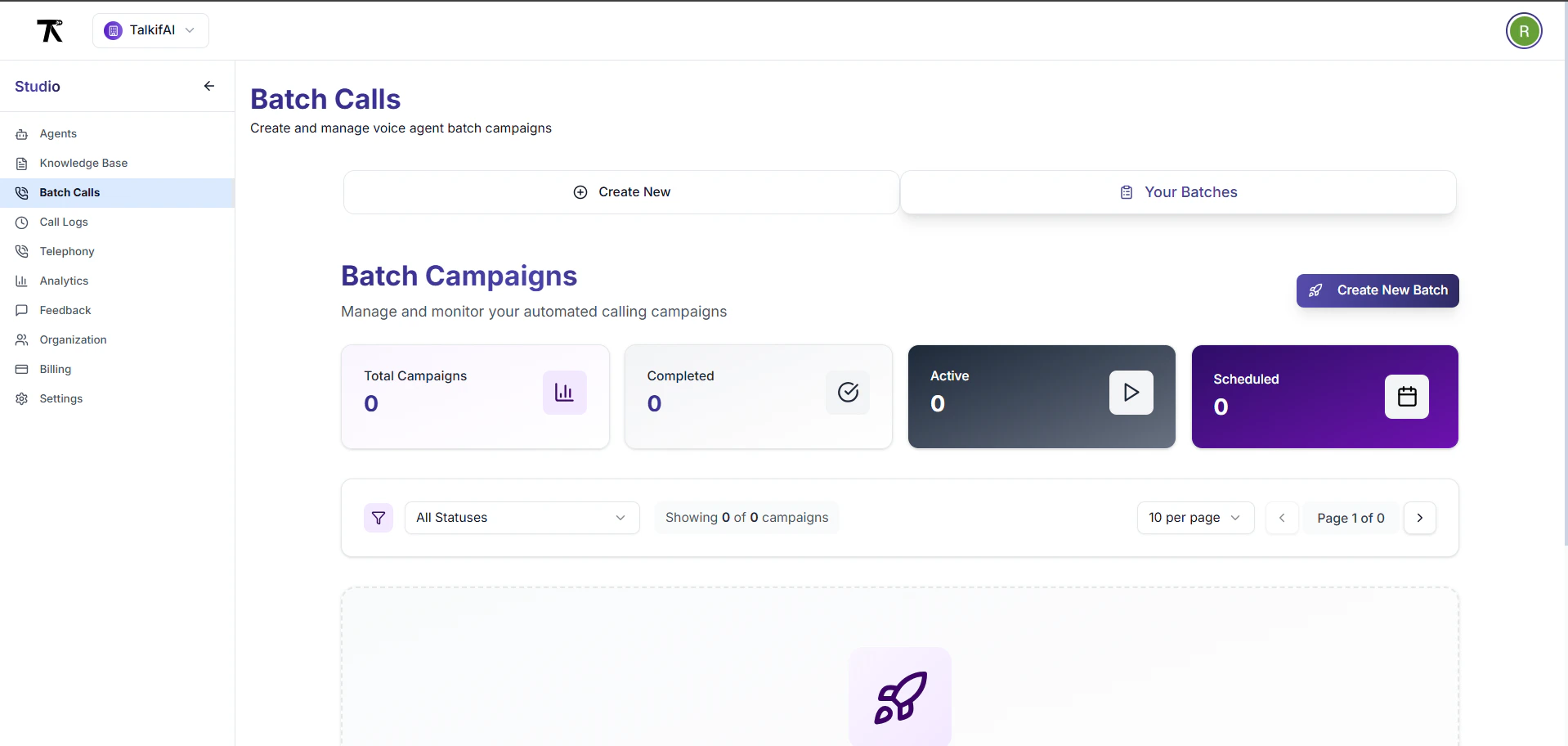
Tab 2: Your Batches
- List of all batch campaigns
- Status filtering
- Search and pagination
- Batch actions (view, pause, resume, cancel, delete)
Creating a Batch Campaign
Step 1: Navigate to Batch Calls
- Go to Studio → Batch Calls (sidebar)
- Click Create New tab (default)
Step 2: Upload CSV File
CSV Requirements:
CSV Template:
- Click Upload CSV button or drag & drop file
- System validates:
- File type (.csv)
- Required
phonecolumn - Phone number format
- Duplicate detection
- Empty rows
- Shows validation report:
- ✅ Total rows
- ✅ Valid rows
- ⚠️ Invalid rows (with reasons)
- ⚠️ Duplicate phones
Step 3: Configure Batch Settings
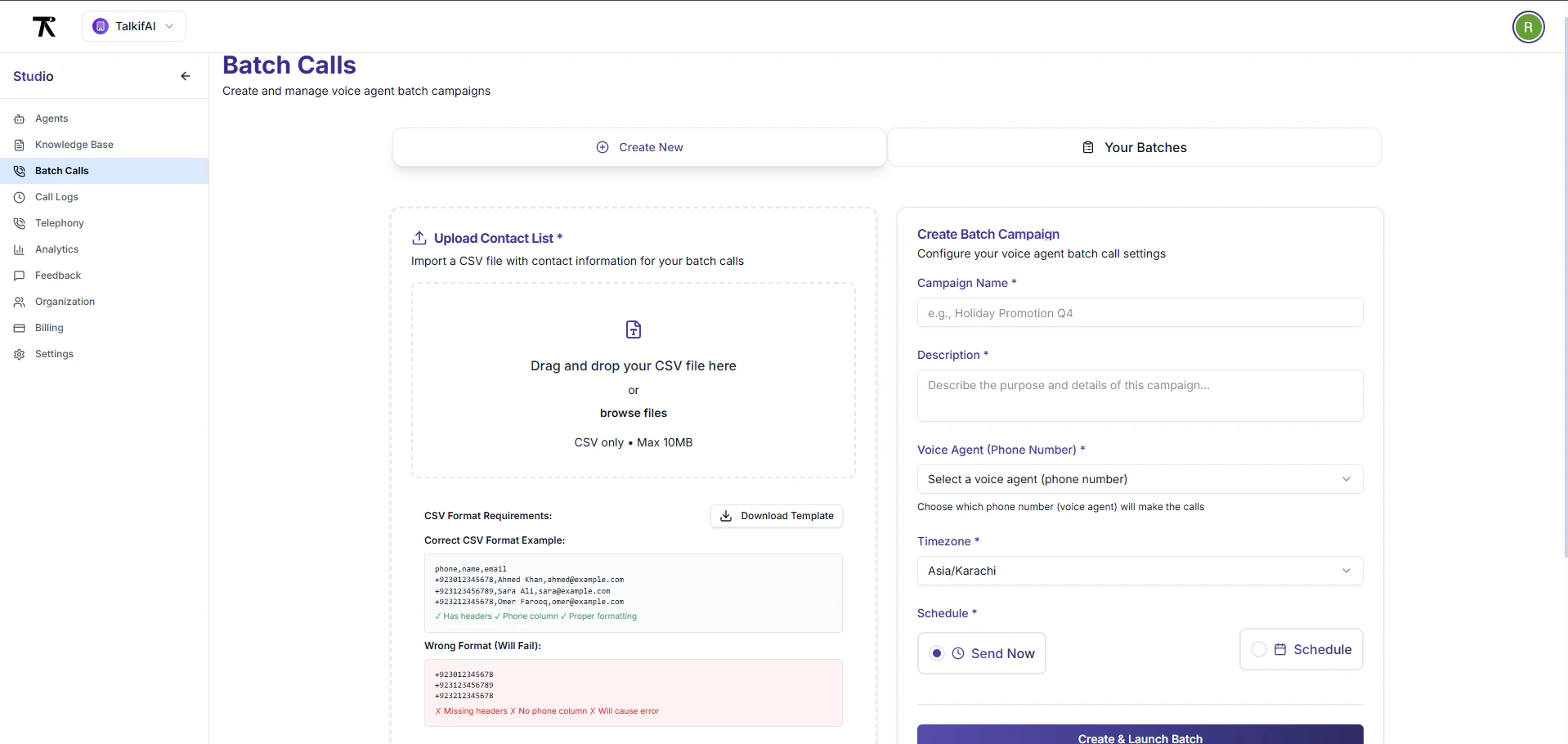
Agent Selection:
- Dropdown shows all voice agents in your organization
- Shows agent name and architecture
- Only Pipeline/Realtime agents (text agents can’t make calls)
- Must be a registered phone number in your organization
- Must have outbound trunk configured
- Dropdown shows all available numbers
- Default: 5 concurrent calls
- Range: 1-50
- Higher = faster completion but more load
- Recommended: 5-10 for most campaigns
- Default: 3 attempts
- Retryable statuses:
no_answer,busy,timeout - Retry delays: 5 min (attempt 2), 30 min (attempt 3)
Step 4: Schedule (Optional)
Immediate Start:- Leave “Schedule Start Time” empty
- Batch starts immediately after creation
- Click calendar icon
- Select date from calendar
- Select time (HH:MM format)
- Select timezone
- System converts to UTC
Step 5: Review & Create
Review Checklist:- ✅ CSV validated successfully
- ✅ Batch name entered
- ✅ Agent selected
- ✅ From number selected
- ✅ Concurrency set (default: 5)
- ✅ Retry attempts set (default: 3)
- ✅ Schedule time set (or immediate)
- Button shows loading spinner
- Backend validates all data
- Creates batch job in database
- Enqueues contacts in Redis
- Redirects to batch detail page
Batch Statuses
Viewing Batch Details
Navigation
URL:/batch-calls/{batchId}
Access: Click any batch in the list OR go directly via URL
Batch Detail Page Layout
Section 1: Overview Cards
-
Total Contacts
- Total number in batch
- Icon: Users
-
Successful Calls
- Completed successfully
- Success rate percentage
- Icon: CheckCircle
-
Failed Calls
- Failed after all retries
- Failure rate percentage
- Icon: XCircle
-
Processing
- Currently in progress
- Pending + Running
- Icon: Clock
Section 2: Batch Information
Details Card:Section 3: Contacts List
Table Columns:
Contact Statuses:
Pagination:
- Default: 50 contacts per page
- Options: 25, 50, 100
- Shows: “Showing X of Y contacts”
- Search by phone number
- Search by name
- Search by status
- Filter by status
- Filter by attempt count
- Filter by date range
Managing Batches
Batch Actions
Available actions depend on batch status:Export Feature: Export functionality is available for Completed and Failed batches. Export options include CSV (all contacts, successful only, or failed only).
Pause a Batch
When: Temporarily stop calling (e.g., outside business hours) How:- Go to batch detail page
- Click Actions (⋮) → Pause
- Confirm in dialog
- Status changes to “Paused”
- Running calls complete normally
- Pending calls wait in queue
- No new calls initiated
- Contacts in queue preserved
- Can resume later
Resume a Batch
When: Continue a paused batch How:- Go to batch detail page
- Click Actions (⋮) → Resume
- Confirm in dialog
- Status changes to “Running”
- Queue processing resumes
Cancel a Batch
When: Stop batch permanently How:- Go to batch detail page
- Click Actions (⋮) → Cancel
- Confirm in dialog (“This action cannot be undone”)
- Status changes to “Cancelled”
- Running calls complete
- Pending calls not processed
- Irreversible action
- Contacts in queue discarded
- Can export results before cancelling
Delete a Batch
When: Remove batch from system How:- Go to batch list page
- Click Actions (⋮) → Delete
- Confirm in dialog
- Batch and all contacts deleted
Reschedule a Batch
When: Change scheduled start time How:- Go to batch detail page
- Click Actions (⋮) → Reschedule
- Opens reschedule dialog:
- Select new date
- Select new time
- Select timezone
- Click Confirm
- Scheduled time updated
- Only for Pending/Scheduled batches
- Cannot reschedule running batches
- New time must be in future
Export Batch
When: Download batch results for analysis or reporting How:- Go to batch detail page (Completed or Failed status)
- Click Export button
- Select export options:
- Format: CSV
- Filter: All / Successful / Failed
- Download CSV file
- Contact name
- Phone number
- Call status
- Number of attempts
- Call duration
- Failure reason (if failed)
- Call timestamp
Export Availability: Export is only available for batches with Completed or Failed status. Running batches must complete before export.
Retry Behavior
Automatic Retry Logic
Failed calls are automatically retried:Non-Retryable Failures
These statuses are NOT retried:Retry Queue
How it works:- Failed contact added to retry queue
- Status changes to “Queued”
- Shows “Next Retry At” time
- Worker picks up at scheduled time
- Attempts counter increments
- Filter contacts by status = “Queued”
- Shows retry attempt number
- Shows scheduled retry time
Concurrency Control
Two-Level Concurrency
TalkifAI uses sophisticated concurrency management:Example Scenario
Setup:- Org limit: 5 concurrent calls
- Batch A limit: 5 concurrent
- Batch B limit: 5 concurrent
- Max 5 calls total across both batches
- NOT 10 calls (5+5)
- If Batch A is using 3 calls
- Batch B can only use 2 calls
- Batch B waits if it needs more
Adjusting Concurrency
Increase for Faster Completion:Cost Estimation
Pricing Model
Per-Call Pricing:- Base cost: $0.05/minute (infrastructure)
- LLM cost: $0.015/minute (GPT-4o-mini)
- STT cost: $0.003/minute (Deepgram)
- TTS cost: $0.005/minute (Cartesia)
Cost Calculator
Formula:- Shows estimated cost before creation
- Based on average 3-minute calls
- Updates as batch progresses
- Shows actual cost in analytics
Analytics & Reporting
Real-Time Metrics
Live Dashboard:- Calls completed (real-time counter)
- Success rate percentage
- Average call duration
- Cost incurred so far
- Estimated completion time
Post-Completion Reports
Summary Statistics:- Total contacts
- Successful calls
- Failed calls
- Success rate
- Average duration
- Total cost
- Retry statistics
- CSV export (all contacts)
- CSV export (successful only)
- CSV export (failed only)
- PDF report (summary)
Contact-Level Analytics
Per-Contact Data:- Call start time
- Call end time
- Duration
- Number of attempts
- Final status
- Failure reason (if failed)
- Recording URL (if enabled)
- Transcript (if enabled)
Best Practices
Start with Test Batch
Before running 10,000 calls, test with 10-20 contacts to verify agent behavior and CSV format.
Respect Calling Hours
Schedule calls during business hours (9 AM - 6 PM local time). Use timezone-aware scheduling.
Optimize Concurrency
Start with 5 concurrent calls. Increase to 10-20 for large batches. Monitor system load.
Clean Your Data
Remove duplicates, validate phone numbers, and update invalid contacts before uploading.
Monitor Failed Calls
Check failure reasons. High invalid_number rate indicates data quality issues.
Use Descriptive Names
Name batches clearly: “2024-01-Payment-Reminders” not “Test Batch 1”.
Troubleshooting
CSV Upload Fails
CSV Upload Fails
Error: “CSV must have ‘phone’ column”Solution:
- Check first row contains headers
- Ensure one column is named
phone(case-insensitive) - Verify phone numbers are in E.164 format (+1234567890)
- Remove any empty rows or columns
Batch Not Starting
Batch Not Starting
Status: Stuck in “Pending”Check:
- Organization has available credits
- From phone number has outbound trunk configured
- Agent is active and uses Pipeline/Realtime architecture
- Concurrency limit not exceeded by other batches
High Failure Rate
High Failure Rate
Problem: >20% calls failingCommon Causes:
- Invalid phone numbers → Clean your data
- Carrier blocking → Rotate phone numbers
- No answers → Adjust calling hours
- Agent errors → Check agent configuration
Batch Running Slowly
Batch Running Slowly
Problem: Taking longer than estimatedSolutions:
- Increase concurrent call limit (10-20)
- Check organization concurrency limit
- Verify no other batches competing for capacity
- Check system health (Redis, workers)
Contacts Stuck in Queue
Contacts Stuck in Queue
Status: Shows “Queued” but not callingCheck:
- Batch status is “Running” (not “Paused”)
- Concurrency limit not maxed out
- Redis worker is running
- Retry time hasn’t passed yet
API Reference
Create Batch
Get Batch List
Get Batch Detail
Pause Batch
Resume Batch
Cancel Batch
Delete Batch
Reschedule Batch
scheduledStartTime— ISO 8601 datetime (e.g.,2024-01-20T14:00:00)timezone— IANA timezone (e.g.,America/New_York)
Export Batch
Related Documentation
- Telephony — Configure phone numbers and SIP trunks
- Outbound Calling — Setup guide for outbound calls
- Analytics — View usage metrics and costs
- Agent Configuration — Configure agents for batch calling