

Before You Start
Have these ready:1
Open the Studio
Go to your TalkifAI Studio dashboard and navigate to Agents, then click Create Agent.
2
Decide on a use case
What should this agent do? Customer support? Appointments? Sales? Decide first — everything else follows from this.
3
Select an organization
Make sure you have an organization selected — agents are scoped to organizations.
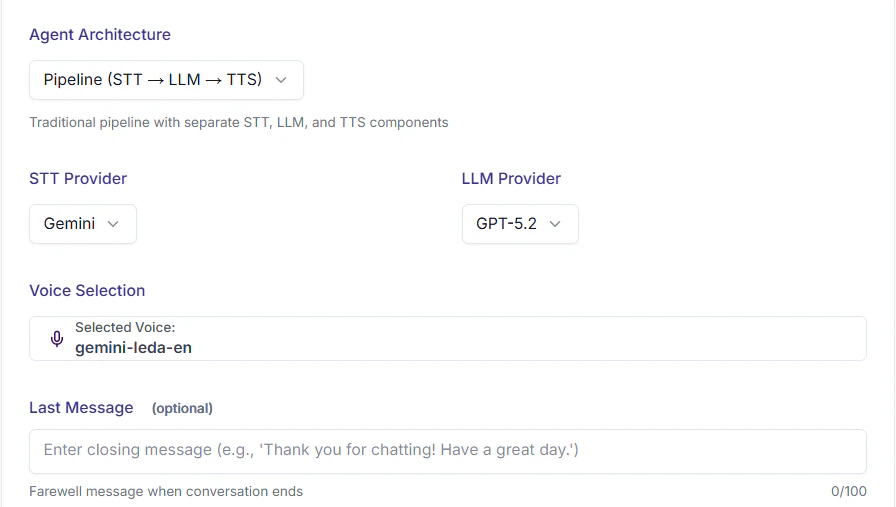
Step 1: Choose an Architecture
The most important decision — it determines whether your agent can handle voice, text, or both.- 🔧 Pipeline (Recommended for Voice)
- ⚡ Live (Realtime)
- 💬 Chat (Text Only)
Best when: You need voice calls with full provider flexibility.How it works:Each component uses a separate provider — you choose which:
- STT: Deepgram, OpenAI Whisper, Cartesia, Gemini
- LLM: GPT-4o, GPT-4o-mini, Gemini models, etc.
- TTS: Cartesia, OpenAI TTS, Gemini, Deepgram
- Voice selection
- LLM model
- STT provider
First time building? If you need voice → choose Pipeline. If you only need a website chatbot → choose Chat.
Step 2: Basic Information
Agent Modes:
- Private: Only visible to you and organization admins
- Public: Visible to all members of your organization (default)
- Commercial: Listed in the marketplace (requires owner/admin permissions)
Step 3: System Prompt — The Most Important Part
The system prompt is the agent’s soul. It defines: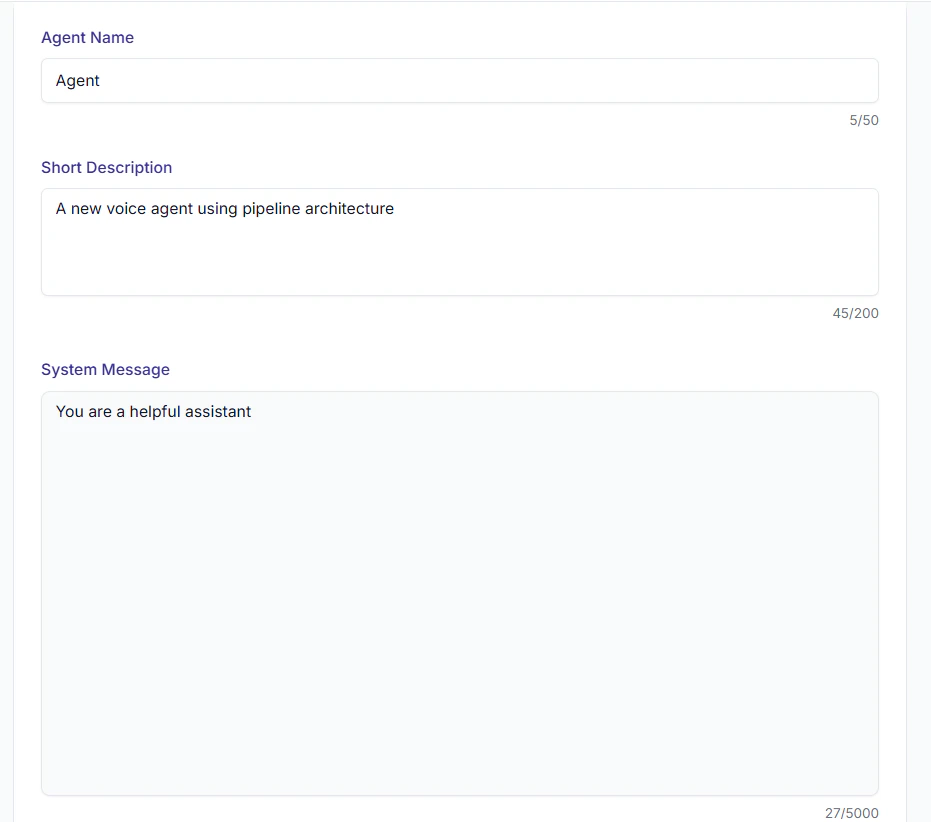
- Who the agent is
- What it should do
- How it should speak
- What it should never do
Starter Template
Ready-Made Examples
🛒 E-Commerce Customer Support
🛒 E-Commerce Customer Support
📅 Appointment Booking
📅 Appointment Booking
📞 Sales / Lead Qualification
📞 Sales / Lead Qualification
🏥 Medical / Healthcare Triage
🏥 Medical / Healthcare Triage
System Prompt Best Practices
Keep it Short
Under 5000 characters. Long prompts confuse the agent and produce inconsistent responses.
Be Specific
“Be friendly” is vague. “Start every response with the customer’s name” is actionable.
Cover Edge Cases
What happens when the agent doesn’t know? When the user is angry? Define it explicitly.
Test and Iterate
Write → Test → Fix → Repeat. 3–5 iterations is completely normal.
Step 4: Configure Agent Behavior
Temperature
Controls the randomness and creativity of the agent’s responses.Inactivity Timeout
How long the agent waits before ending a call due to silence.Greeting Configuration
Choose who speaks first when the call starts:If you choose “Agent speaks first”, you’ll need to select a voice for the greeting (for Realtime architecture) or configure a greeting message.
Last Message (Optional)
A farewell message played when the conversation ends gracefully. Example: “Thank you for chatting! Have a great day.”Step 5: Choose an LLM Model (Pipeline & Text Only)
Available models are fetched from your organization’s configured providers.Step 6: Choose a Voice (Pipeline & Realtime Only)
The right voice makes your agent sound trustworthy and professional. Full guide: Voice Selection → Quick picks:Supported voice providers: Cartesia, OpenAI TTS, Gemini, Deepgram. Availability depends on your organization’s API keys and configured providers.
Step 7: Choose STT Provider (Pipeline Only)
Step 8: Add Functions (Optional)
Give your agent the ability to take real actions during calls.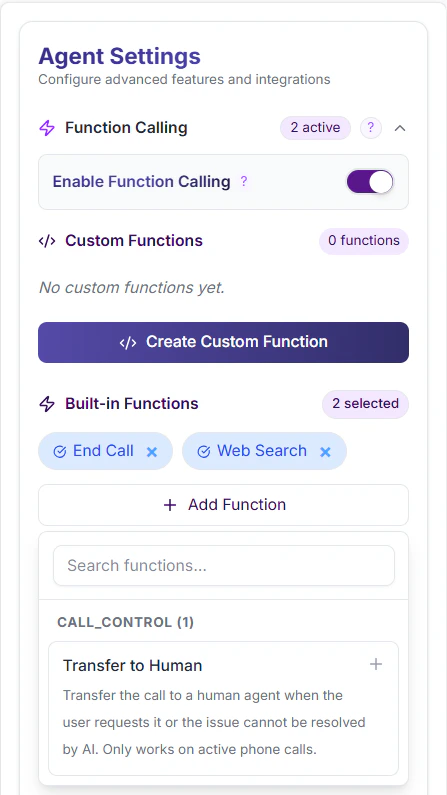
Custom functions — connect your own APIs:
- Check order status
- Fetch data from your database
- Book a calendar slot
- Update your CRM
Step 9: Test Before Going Live
Always test before activating!- Click Test Agent in the Studio
- Talk to it directly in the browser — no phone number needed
- Try different scenarios:
- Normal conversation
- Edge cases (unknown info, angry user)
- All functions working correctly?
Step 10: Save and Activate
Click Create Agent (or Update Agent when editing). Your agent is now live. You can:Browser Test
Talk to your agent live in the Studio.
Connect a Phone Number
Receive real phone calls on your agent.
Call via API
Programmatically trigger outbound calls.
Embed on Website
Add a voice widget to your website.
Common Mistakes to Avoid
❌ System prompt is too long
❌ System prompt is too long
Problem: Agent becomes inconsistent and confused.
Fix: Keep it under 5000 characters. Include only essential instructions.
❌ Skipping tests
❌ Skipping tests
Problem: Agent behaves unexpectedly in production.
Fix: Run at least 20 test conversations across different scenarios.
❌ No edge cases defined
❌ No edge cases defined
Problem: Agent doesn’t know what to do when it’s confused.
Fix: Add explicit instructions: “If X happens, do Y.”
❌ Temperature too high
❌ Temperature too high
Problem: Support agent gives “creative” but incorrect answers.
Fix: For factual/support tasks, keep temperature at 0.2–0.4.
❌ Missing required fields
❌ Missing required fields
Problem: Agent creation fails with validation errors.
Fix: Ensure Name, Description, Languages, and System Prompt are filled. For Pipeline: also select Voice, LLM, and STT.
❌ Inactivity timeout too short
❌ Inactivity timeout too short
Problem: Calls end prematurely during natural pauses.
Fix: Set timeout between 20–40 seconds for most use cases.
API Reference
Create Agent
- Requires session authentication (Better Auth)
- Automatically scoped to your active organization
- Only Owners/Admins can create commercial agents
- Default mode is “public” if not specified
List Agents (Current Organization)
- Owners/Admins: See all agents (public + private)
- Members: See public agents + their own private agents
List All Agents (All Organizations)
Get Agent
- Returns 403 if agent is private and you’re not the creator or an admin
Update Agent
- Only send fields you want to change
- Architecture cannot be changed after creation
- Only creators or Owners/Admins can update agents
- Commercial agents can only be modified by Owners/Admins
Delete Agent
- Deletes agent and all related data (subagents, functions, etc.)
- Call logs and transcripts are preserved
- Only creators or Owners/Admins can delete
- Commercial agents can only be deleted by Owners/Admins
Error Responses
Example Error:
Related API Documentation
- Function Calling API — Manage agent functions
- Subagents API — Manage subagent hierarchies
- Webhook API — Configure agent webhooks