

Overview
TalkifAI supports full telephony integration — connect a real phone number to your agent and start receiving or making calls immediately. Primary carrier support:- Twilio (fully tested and documented)
- Telnyx
- Plivo
- SignalWire
- Bandwidth
- Vonage
Studio Phone Numbers Page
Navigation: Studio → Telephony (or Studio → Phone Numbers) URL:/telephony
Access: Owners and Admins can manage phone numbers. Members can view and use assigned numbers.
Page Layout
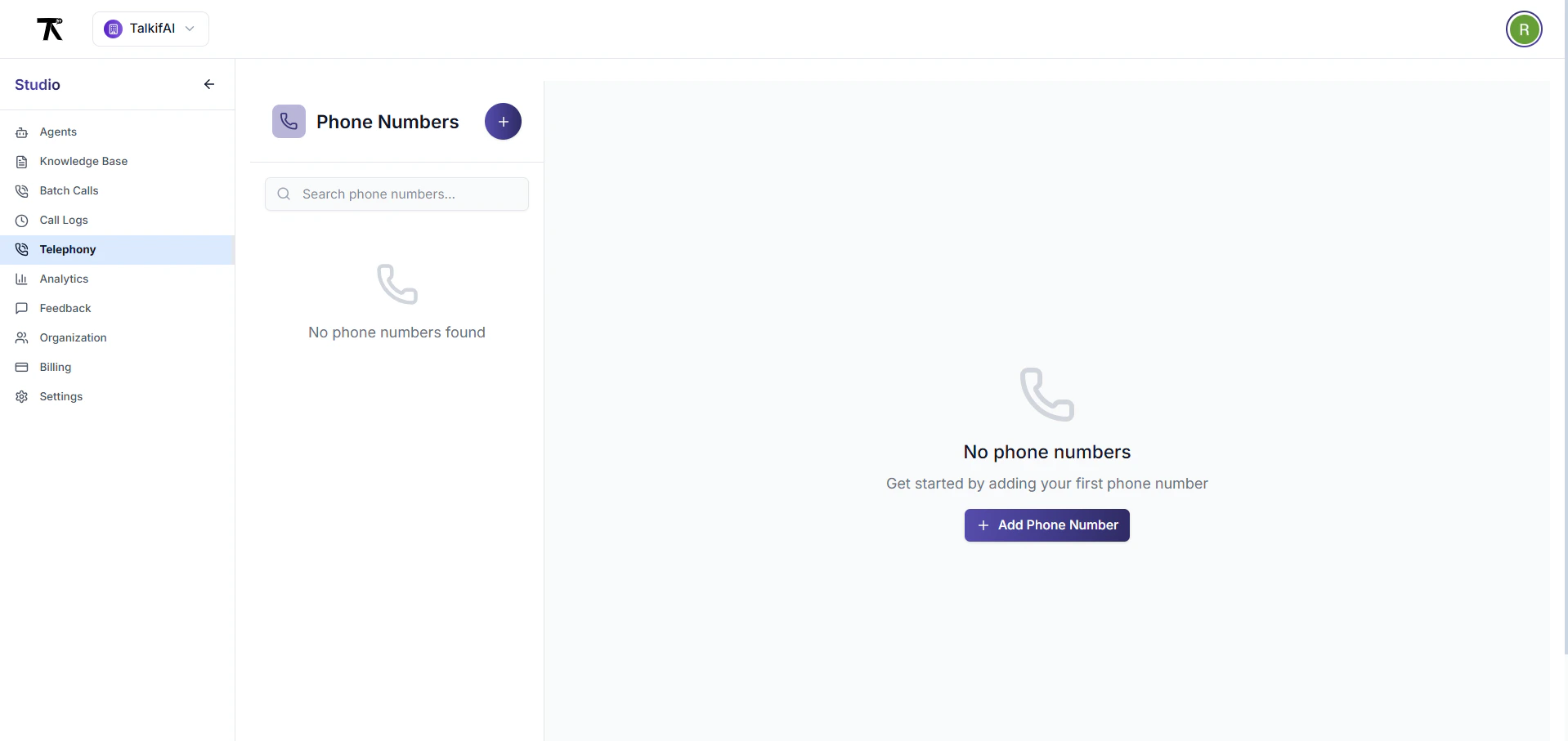
The Phone Numbers page has a two-column layout:Left Column: Phone Numbers List (Sidebar)
-
Header
- Icon: Phone icon (purple background)
- Title: “Phone Numbers”
- Add Button: Plus icon (blue, circular, top-right)
-
Search Bar
- Placeholder: “Search phone numbers…”
- Icon: Search icon (left side)
- Filters by:
- Phone number
- Inbound agent name
- Outbound agent name
-
Phone Numbers List
- Scrollable list of all phone numbers
- Each number shows:
- Phone Number (bold, truncated if long)
- Status Badge (green = active, gray = inactive)
- Inbound Agent (agent name + mode)
- Outbound Agent (agent name + mode)
- Selected State: Blue background with blue border
- Hover State: Light gray background
-
Action Buttons (per number)
- Edit Button (pencil icon)
- Opens edit dialog
- Edit number details
- Delete Button (trash icon)
- Red on hover
- Requires confirmation
- Edit Button (pencil icon)
- Phone icon (gray, large)
- Text: “No phone numbers found”
- Action: Click “Add Phone Number” button
Right Column: Phone Number Details (Main Content)
When No Number Selected:- Phone icon (gray, 64x64)
- Text: “Select a phone number” or “No phone numbers”
- Subtext: Instructions
- Add Button: “Add Phone Number” (if no numbers exist)
- Phone Number (large, bold)
- Status Badge (green/gray)
- ID: Internal phone number ID
- Test Call Button: Green “Make Test Call” button
- Links to
/demo-call - Opens demo call page
- Links to
- Title: “Inbound Call Configuration”
- Field: “Inbound Call Agent” dropdown
- Shows all available agents
- Format: “Agent Name (mode)”
- Current selection shown below
- Save: Included in main save button
- Title: “Outbound Call Configuration”
- Field: “Outbound Call Agent” dropdown
- Shows all available agents
- Format: “Agent Name (mode)”
- Current selection shown below
- Save: Included in main save button
- Title: “Call Settings”
- Field 1: “Webhook URL”
- Input field
- Copy button (clipboard icon)
- Placeholder: “https://your-webhook-url.com/webhook”
- Field 2: “Call Recording”
- Dropdown options:
- Disabled
- Record all calls
- Record with consent
- Dropdown options:
- Location: Below configuration cards
- Text: “Save Agent Assignments”
- Icon: Save icon
- Loading State: Shows spinner, “Saving…”
- Success: Toast notification
Add/Edit Phone Number Dialog
Trigger: Click “Add Phone Number” (+) button or Edit (pencil) button Dialog Title: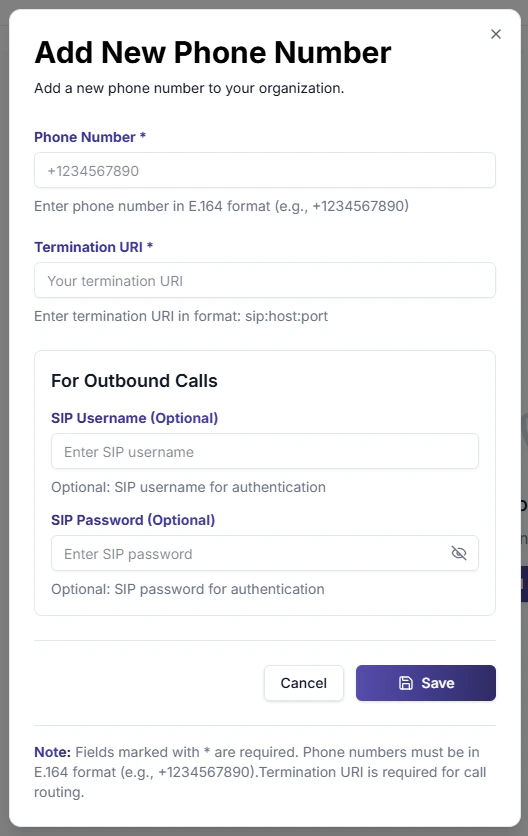
- Add: “Add Phone Number”
- Edit: “Edit Phone Number”
Buttons:
- Cancel: Closes dialog, no changes
- Save: Validates and saves number
- Shows loading spinner
- Toast on success/error
- Refreshes list on success
- Phone number must be in E.164 format
- Must start with
+ - Minimum 10 digits after
+ - Termination URI must be valid URL
Delete Phone Number
Process:- Click trash icon on phone number
- Confirmation dialog appears:
- “Are you sure you want to delete phone number +1234567890?”
- “This action cannot be undone.”
- Click Confirm or Cancel
- If confirmed:
- Calls backend API to delete
- Removes from local state
- Shows success toast
- Selects next number or shows empty state
- Phone number record
- Associated SIP trunks in LiveKit
- Agent assignments
- Call history (preserved in database)
Save Agent Assignments
Process:- Select inbound agent from dropdown
- Select outbound agent from dropdown
- Click “Save Agent Assignments”
- Sends PUT request to backend:
- Shows loading state
- Success toast: “Agent assignments saved successfully”
- Refreshes data
- At least one agent must be selected
- Agent must be Pipeline or Realtime architecture
- Text agents cannot be assigned
Search & Filter
Search Functionality:- Real-time filtering
- Case-insensitive
- Searches:
- Phone number string
- Inbound agent name
- Outbound agent name
+1202→ Finds all numbers starting with +1202Support→ Finds numbers with “Support” agent assignedSales→ Finds numbers with “Sales” agent assigned
Status Badges
Active Requirements:
- ✅ Phone number added
- ✅ Termination URI set
- ✅ At least one agent assigned (inbound or outbound)
- ✅ SIP credentials configured (for outbound)
Keyboard Shortcuts
Not currently implemented Future:N— New phone numberCtrl+F— Focus searchDelete— Delete selected numberEnter— Save changes
Mobile Responsiveness
Desktop (≥1024px):- Two-column layout (sidebar + main)
- Full configuration cards visible
- All fields accessible
- Sidebar collapses to icons only
- Main content takes full width
- Cards stack vertically
- Sidebar becomes drawer (slide-in)
- Hamburger menu to toggle
- Cards full width
- Simplified form fields
Real-Time Updates
Auto-Refresh:- Refreshes when organization changes
- Listens for
agentUpdatedevents - Manual refresh via reload
- Uses
CustomEventfor communication - Events:
phoneNumberAddedphoneNumberUpdatedphoneNumberDeleted
Error States
No Organization Selected:- Yellow warning box
- Text: “Please select an organization first”
- Action: Select organization from sidebar
- Toast notification
- Error message from backend
- Retry option
- Inline error messages
- Red border on invalid fields
- Helper text below field
Inbound Calling
Allow customers to call your agent on a real phone number.How it works
Setup with Twilio
1
Create a SIP Trunk
- Go to Twilio Console → Elastic SIP Trunking → Trunks → Create Trunk
- Set Friendly Name: e.g.,
TalkifAI - Note the Termination SIP URI (e.g.,
your-trunk.pstn.twilio.com)
2
Set Origination URI
In your trunk → Origination section, add:
The
;transport=tls suffix enables Secure SIP (TLS). Required for production deployments.3
Add Phone Number in TalkifAI Studio
- Go to Studio → Phone Numbers → Add Number
- Enter your Twilio phone number in E.164 format (e.g.,
+1234567890) - Enter the Termination URI from your Twilio trunk
- Optionally enter SIP username and password (for outbound authentication)
- Click Save
4
Assign an Inbound Agent
- In the Phone Numbers list, select your phone number
- Under Inbound Agent, select the agent that should answer incoming calls
- Click Save
5
Configure Twilio Routing
- Go to Twilio Console → Phone Numbers → Manage → Active Numbers
- Select your Twilio phone number
- Under Voice Configuration:
- Configure with: SIP Trunk
- SIP Trunk: Select your trunk (e.g., “TalkifAI”)
- Click Save
6
Test
Call your phone number. The agent should answer within 2-3 seconds.
Outbound Calling
Programmatically call any phone number from your agent.Prerequisites
- Outbound Trunk: Configure an outbound SIP trunk in your carrier console
- SIP Credentials: Create SIP username/password for authentication
- IP ACL: Add your VM’s public IP address to the carrier’s allowed list
- Phone Number: Add the phone number in TalkifAI Studio with SIP credentials
Configure Outbound Calling
1
Set Up Carrier Authentication
For Twilio:
- Go to Elastic SIP Trunking → Manage → Credential Lists
- Create a credential list with username/password
- Go to IP ACL and add your VM’s public IP address
2
Add Phone Number with Credentials
- In Studio → Phone Numbers → Add Number
- Enter phone number in E.164 format
- Enter Termination URI (your Twilio trunk URI)
- Enter SIP Username and SIP Password (from your credential list)
- Click Save
3
Assign an Outbound Agent
- Select the phone number in the list
- Under Outbound Agent, select the agent to use for outgoing calls
- Click Save
4
Configure Twilio Routing
- In your Twilio trunk → Termination section:
- Set Termination SIP URI:
livekit.talkifai.dev:5061(or your LiveKit SIP server) - Assign your credential list and IP ACL
- Set Termination SIP URI:
Via Dashboard
- Go to Studio → Phone Numbers
- Select a number with an outbound agent configured
- Click Make Call
- Enter the destination number in E.164 format (e.g.,
+12025550123)
Via API
Response:
Managing Phone Numbers
Phone Number Fields
Assigning Agents
Each phone number can have:- Inbound Agent — Handles incoming calls (answered when someone calls this number)
- Outbound Agent — Used for outgoing calls (when calling from this number)
Deleting a Phone Number
- Go to Studio → Phone Numbers
- Select the phone number
- Click the Delete button
- Confirm deletion
BYOC (Bring Your Own Carrier)
If you have an existing SIP infrastructure, use BYOC to connect it to TalkifAI without porting numbers. What BYOC gives you:- Connect your existing Twilio/Telnyx/Plivo accounts
- Use your own SIP trunks and phone numbers
- Pay carriers directly (no markup from TalkifAI)
- Full control over SIP configuration
- SIP trunk from your carrier
- SIP credentials (username/password)
- LiveKit SIP server configured (self-hosted or cloud)
Credential Security
How it works:- Credentials are encrypted with a
FERNET_KEYenvironment variable - Encrypted data is stored in the
PhoneNumbertable (sipPasswordfield) - The encryption key is set once during deployment and should never be changed after credentials are saved
- If you lose the
FERNET_KEY, all stored credentials will be unrecoverable
- Store your
FERNET_KEYin a secure secrets manager - Never commit the key to version control
- Rotate credentials periodically (not the encryption key)
- Use different credentials for production and development
Carrier-Specific Configuration
Twilio
Console Links: Secure Trunking (TLS):- Enable Secure Trunking in your trunk’s General Settings
- Add
;transport=tlsto your Origination URI: - For outbound trunks, set:
- Go to Voice → Settings → Geo Permissions
- Enable the countries you want to call
Telnyx
Key differences:- Telnyx uses “Outbound Profiles” instead of credential lists
- IP ACL is configured per outbound profile
- Authentication can be IP-based or credential-based
SignalWire
Troubleshooting
Call not connecting
Call not connecting
Check:
- SIP trunk origination URI is correct (
sip:livekit.talkifai.dev:5061;transport=tls) - Phone number is assigned to an inbound agent
- Twilio number is configured to use your SIP trunk
- LiveKit SIP server is running and accessible
Outbound call fails with 404
Outbound call fails with 404
Cause: The
from_number is not registered in TalkifAI or has no outbound agent assigned.Fix:- Go to Studio → Phone Numbers
- Add the phone number if it doesn’t exist
- Assign an outbound agent
- Ensure SIP credentials are configured
Outbound call fails with 402
Outbound call fails with 402
Cause: Insufficient balance in your carrier account.Fix: Add funds to your Twilio/Telnyx account and retry.
SIP authentication fails
SIP authentication fails
Check:
- SIP username/password are correct
- Credential list is assigned to the trunk
- IP ACL includes your VM’s public IP address
- Credentials are properly encrypted (check
FERNET_KEYis set correctly)
Text agent assigned to phone number
Text agent assigned to phone number
Error: “Agent is a text-only agent and cannot make voice calls”Fix: Assign a Pipeline or Realtime architecture agent instead. Text agents only support chat, not voice calls.
API Reference
For programmatic access, see:Related Guides
- BYOC Setup — Connect your own SIP carrier
- Agent Architecture — Understand Pipeline vs Realtime vs Text
- LiveKit SIP — LiveKit SIP documentation