

Overview
The Billing & Credits page is your central hub for managing your organization’s credit balance. View real-time balance, track all transactions (top-ups and usage), and add more credits when needed. Navigation: Studio → Billing URL:/billing
Access: All organization members can view billing. Only Owners can add credits.
Page Layout
Header Section
Title: “Billing & Credits”- Large gradient text (purple brand color)
- Subtitle: “Manage your credits and view transaction history”
-
Add Credits (Green button)
- Opens Lemon Squeezy checkout
- Opens in new tab
- Shows loading spinner during processing
-
Refresh (Outline button)
- Reloads transaction history
- Shows spinning refresh icon
- Updates balance in real-time
Stats Cards (4 Cards)
Card 1: Current Balance (Purple Gradient)- Icon: Wallet
- Value:
$XX.XX(large, bold) - Label: “Available credits”
- Color: White text on purple gradient
- Icon: Trending Up
- Value:
+$XX.XX(green tint) - Label: “Credits added”
- Color: White text on gray gradient
- Icon: Arrow Down Right
- Value:
-$XX.XX(red tint) - Label: “Credits consumed”
- Color: Black text on white background
- Icon: Credit Card
- Value:
XXX(count) - Label: “All time”
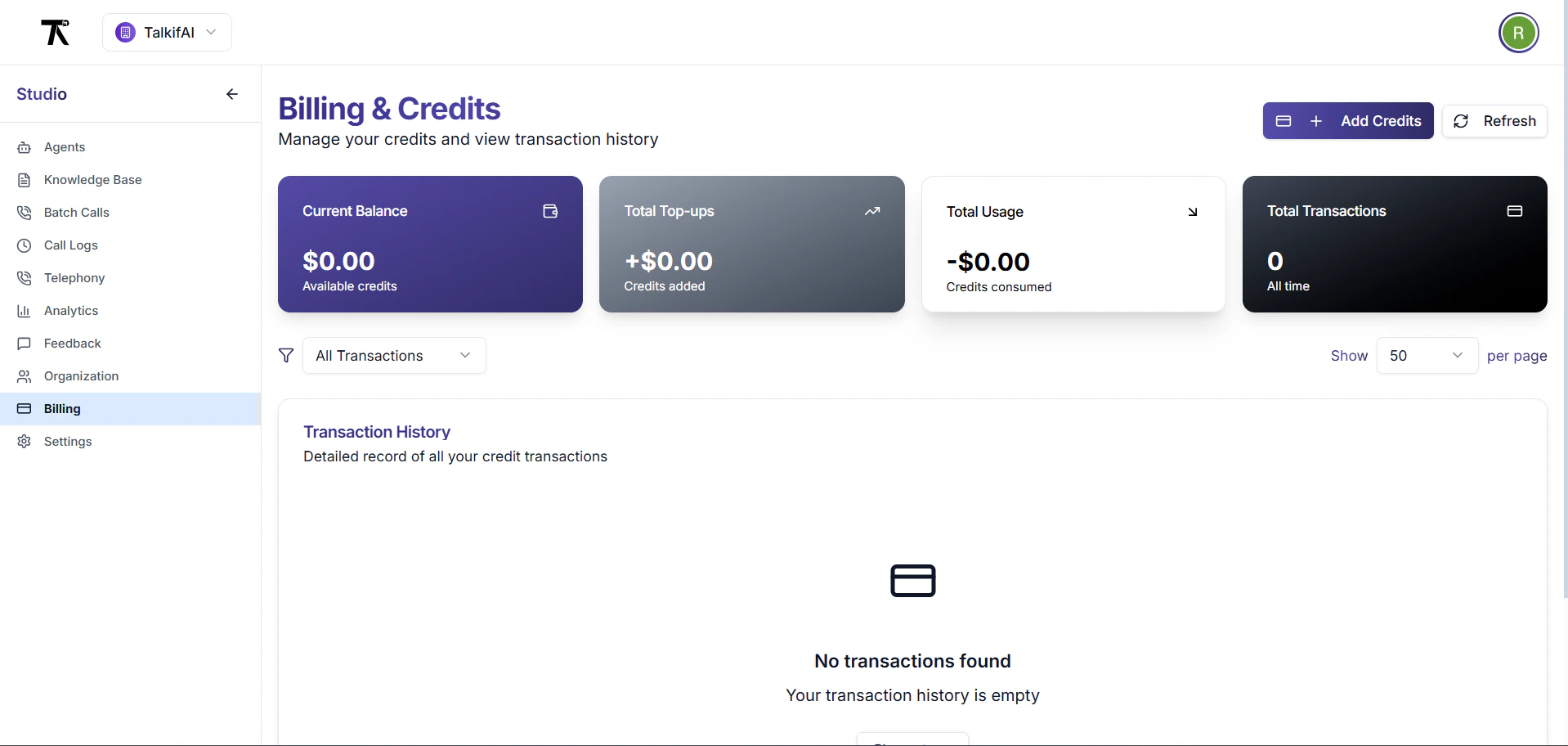
- Color: White text on black gradient
Transaction History Table
Table Columns
Transaction Types
Top-ups (Green Badge):- Credit purchases via Lemon Squeezy
- Manual credit grants (admin)
- Welcome credits (new orgs)
- Startup grant credits
- Voice call charges
- Chat session charges
- API usage charges
- Any service consumption
refund— Credits refundedadjustment— Manual balance adjustments
Transaction Icons
Filters & Controls
Filter by Type
Dropdown Options:- All Transactions (default)
- Top-ups (only credit additions)
- Usage (only credit consumption)
- Filters table in real-time
- Resets to page 1 when changed
- Shows “No transactions found” if empty
Items Per Page
Options: 10, 25, 50, 100 Default: 50 transactions per page Behavior:- Changes table pagination
- Resets to page 1 when changed
- Shows total count in footer
Pagination
Page Navigation
Components:- Previous Button (disabled on page 1)
- Page Numbers (1, 2, 3, …)
- Next Button (disabled on last page)
- Click page number to jump
- Previous/Next navigate sequentially
- Disabled states are grayed out
Adding Credits
”Add Credits” Button
Location: Top-right corner Appearance:- Green background
- Plus icon
- “Add Credits” text
- Hover: Darker green
Checkout Flow
Step 1: Click “Add Credits”- Opens Lemon Squeezy checkout popup
- Overlay appears on screen
- Loading spinner shows
- Multiple credit packages shown
- Example: 50, 500
- Bulk discounts may apply
- Enter card details
- Complete payment via Lemon Squeezy
- Secure payment processing
- Redirects back to Billing page
- Balance updates automatically
- Transaction appears in history
- Toast notification: “Credits added successfully!”
Payment Methods
Accepted:- Credit/Debit Cards (Visa, Mastercard, Amex)
- Digital Wallets (Apple Pay, Google Pay)
- Bank Transfer (for large amounts)
- PCI DSS compliant
- Encrypted transactions
- No card data stored on TalkifAI servers
Transaction Details
Description Examples
Top-up Transactions:- “Credit top-up via Lemon Squeezy - $50.00”
- “Welcome credit - New organization bonus”
- “Manual credit grant - Admin adjustment”
- “Startup grant credit - Approved application”
- “Voice call session - agent_abc123 - 3.5 min”
- “Chat session - agent_xyz789 - 25 messages”
- “API usage - Batch calling - 150 contacts”
- “Service consumption - Realtime agent - 10 min”
Balance Tracking
Balance Columns:- Balance Before — Balance before transaction
- Amount — Transaction amount (+/-)
- Balance After — New balance
Empty State
When No Transactions Exist
Visual Elements:- Icon: Large credit card icon (gray circle)
- Heading: “No transactions found”
- Subtext:
- If filtered: “No [type] transactions in your history”
- If empty: “Your transaction history is empty”
- Action Button: “Refresh”
- Click “Refresh” to reload
- Or add credits to create first transaction
Loading States
Skeleton Loading
When: Fetching transaction history Visual:- Gray placeholder cards (4 stats cards)
- Skeleton table rows (5 rows)
- Animated pulse effect
- Duration: 1-2 seconds
Refresh State
When: Clicking refresh button Visual:- Spinner icon on refresh button
- Button disabled during refresh
- Table remains visible (no skeleton)
- Toast on completion
Error States
Fetch Error
When: API fails to load transactions Alert Box (Red):- Icon: Alert circle
- Title: “Failed to load transaction history”
- Message: “Please try again later”
- Action: Click “Refresh” button
Empty Filter Results
When: Filter shows no matching transactions Message:- “No [type] transactions in your history”
- Example: “No Top-ups transactions in your history”
- Change filter to “All Transactions”
- Or add credits if no top-ups
Real-Time Updates
Auto-Refresh
Current Behavior:- Manual refresh required
- Click refresh button
- Or navigate away and back
- Auto-refresh every 30 seconds
- WebSocket for real-time balance updates
- Toast notifications for transactions
Cross-Tab Sync
Implementation:- Uses
CustomEventfor cross-tab communication - Event name:
billingUpdated
credit_added— Credits added via checkoutcredit_consumed— Credits used for servicebalance_updated— Balance changed
- If transaction in one tab
- Other tabs receive event
- Balance updates automatically
- No manual refresh needed
Transaction History API
Fetch Transactions
Endpoint:Get Current Balance
Endpoint:Billing Sessions
What is a Billing Session?
A billing session represents a single usage event (call, chat, API call) that consumes credits. Session Details:- Session ID
- Agent used
- Duration/message count
- Cost breakdown
- Timestamps
View Session Details
From Transaction:- Find usage transaction in table
- Click on transaction row
- Opens session detail panel
- Shows full breakdown
- Agent name & architecture
- Call duration / message count
- Cost breakdown (base, model, STT, TTS)
- Transcript (if available)
- Recording (if enabled)
- Post-call analysis (if configured)
Credit System
How Credits Work
1 Credit = $1.00 USD Usage Deduction:- Real-time deduction as service is used
- Fractional credits supported (4 decimal places)
- Deducted at session end
Low Balance Warning
Warning Threshold: $5.00 When Balance < $5.00:- Warning banner appears
- “Add Credits” button highlighted
- Email notification sent
- Can still make calls until $0.00
- Cannot initiate new calls
- Existing calls complete normally
- Must add credits to continue
Grace Period
Grace Period Limit: $5.00 (configurable) How It Works:- Can go negative up to -$5.00
- Allows completing ongoing calls
- Must add credits to restore positive balance
- Negative balance shown in red
Pricing & Cost Calculation
Cost Components
Voice Calls (Pipeline):- Base Cost: Infrastructure fee (~$0.05/min)
- LLM Cost: AI processing (~$0.015/min)
- STT Cost: Speech-to-text (~$0.003/min)
- TTS Cost: Text-to-speech (~$0.005/min)
- Base Cost: Infrastructure fee (~$0.05/min)
- Model Cost: Realtime model (~$0.06/min, includes STT/TTS)
- LLM Cost: Per message (~$0.001/message)
- No base/STT/TTS costs
Cost Display
Precision: 4 decimal places Example:$0.1523— Typical 3-minute call$0.0045— Short chat session$50.0000— Credit top-up
- Costs rounded to 4 decimals
- Balance shown to 2 decimals
- Internal calculations use full precision
Troubleshooting
Balance not updating
Balance not updating
Problem: Balance shows old value after adding creditsSolutions:
- Click “Refresh” button
- Wait 30 seconds (payment processing)
- Check email for payment confirmation
- Contact support if not updated after 5 minutes
Transaction missing
Transaction missing
Problem: Expected transaction not in historyCheck:
- Refresh page
- Check “All Transactions” filter
- Increase “Items per page” to 100
- Check date range (oldest first)
- Verify payment email confirmation
Checkout popup blocked
Checkout popup blocked
Problem: Clicking “Add Credits” does nothingSolution:
- Check browser popup blocker
- Allow popups for TalkifAI domain
- Try in different browser
- Or copy checkout link from error message
Negative balance
Negative balance
Problem: Balance shows negative valueExplanation:
- You’re in grace period (-0.00)
- Calls consumed more than available balance
- Must add credits to restore positive balance
- Click “Add Credits”
- Add sufficient credits to cover negative balance
- Balance becomes positive immediately
Wrong amount charged
Wrong amount charged
Problem: Transaction amount seems incorrectCheck:
- Click transaction to view session details
- Review duration/message count
- Check cost breakdown
- Verify agent architecture (Realtime costs more)
- Contact support with session ID if still incorrect
Security & Compliance
Payment Security
Lemon Squeezy Compliance:- PCI DSS Level 1 certified
- SOC 2 Type II compliant
- GDPR compliant
- Encrypted payment processing
- No card data stored on TalkifAI servers
- All payments processed by Lemon Squeezy
- Transaction records encrypted at rest
- Access logged and audited
Access Control
Who Can View:- ✅ All organization members
- ✅ Owners, Admins, Members
- ✅ Owners only
- ❌ Admins (view only)
- ❌ Members (view only)
- All transactions logged
- User who added credits recorded
- Timestamp and IP logged
- Accessible in transaction history
Related Documentation
- Organization Management — Manage organizations and billing settings
- API Keys — Manage API keys for billing
- Call Logs — View detailed call costs
- Analytics — Usage metrics and trends