> ## Documentation Index
> Fetch the complete documentation index at: https://docs.talkifai.dev/llms.txt
> Use this file to discover all available pages before exploring further.
# Organization & Team Management
> Manage your TalkifAI organization, invite team members, assign roles, and control access to agents and resources.
## Overview
TalkifAI is built around **organizations** — every agent, API key, phone number, and call log belongs to an organization. This enables multi-user teams to collaborate on building and managing voice agents.
**Organization features:**
* Invite team members
* Role-based access control (Owner / Admin / Member)
* Multiple organizations per user account
* All resources scoped and isolated per organization
* Organization logo and branding
***
## Organization Structure
```
Organization
├── Agents (public, private, commercial)
├── API Keys
├── Phone Numbers
├── Call Logs & Analytics
├── Knowledge Bases
└── Members
├── Owner (1 per organization)
├── Admins (unlimited)
└── Members (unlimited)
```
Every authenticated action is performed **within your active organization context**. Switching organizations gives you access to that organization's resources only.
**Organization Creation:** A default organization is automatically created when you sign up. You can create additional organizations from the organization switcher in the sidebar.
***
## Roles & Permissions
### Role Hierarchy
| Permission | Owner | Admin | Member |
| ----------------------------- | :-----: | :-------------: | :------------: |
| View all agents | ✅ | ✅ | ⚠️ Public only |
| Create agents | ✅ | ✅ | ✅ |
| Edit public/commercial agents | ✅ | ✅ | ❌ |
| Edit private agents | ✅ (any) | ✅ (any) | ✅ (own only) |
| Delete agents | ✅ | ✅ | ❌ |
| Invite members | ✅ | ✅ | ❌ |
| Remove members | ✅ | ✅ | ❌ |
| Change member roles | ✅ | ⚠️ Member→Admin | ❌ |
| Manage API keys | ✅ | ❌ | ❌ |
| Manage phone numbers | ✅ | ✅ | ❌ |
| View analytics | ✅ | ✅ | ✅ |
| Edit organization settings | ✅ | ❌ | ❌ |
| Create commercial agents | ✅ | ✅ | ❌ |
⚠️ **Notes:**
* Admins can promote Members to Admin, but cannot change other Admins or the Owner
* Members can only view and use public agents created by others
### Role Descriptions
Full control over the organization. Can manage API keys, organization settings, and all members. One owner per organization.
Can invite/remove members, manage agents and phone numbers, view all analytics, and promote members to admin. Cannot manage API keys or org settings.
Can create and manage their own private agents. Can view and use public agents. Cannot invite others or manage organizational resources.
***
## Managing Your Organization
### Create an Organization
An organization is automatically created when you sign up. You can create additional organizations:
1. Click your **organization name** in the top navigation (sidebar)
2. Click **Create Organization**
3. Enter:
* **Organization name** (display name)
* **Slug** (unique URL identifier, cannot be changed later)
4. Click **Create**
**Slug is permanent:** The organization slug (URL identifier) cannot be changed after creation. Choose carefully (e.g., `acme-corp`, `my-startup`).
### Switch Between Organizations
If you're a member of multiple organizations:
1. Click your **organization name** in the sidebar
2. A dropdown shows all organizations you belong to
3. Click any organization to switch to it
4. All resources (agents, keys, logs) update to reflect the selected organization
**Session persistence:** Your active organization is saved in the session and persists across page reloads.
### Edit Organization Settings
**Owners only:**
1. Go to **Studio → Organization** (or Settings → Organization)
2. Update:
* **Organization name** (display name)
* **Organization logo** (image upload)
3. Click **Save Changes**
***
## Inviting Team Members
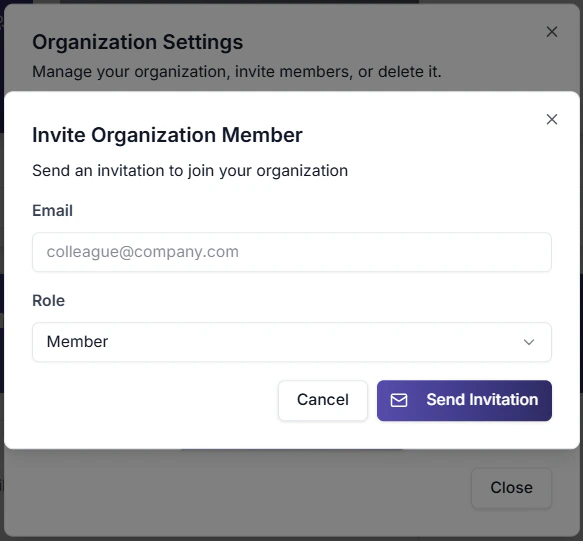
### Send an Invitation
**Owners and Admins can invite:**
1. Go to **Studio → Organization** (or Team page)
2. Click **Invite Member**
3. Enter:
* **Email address** (must be valid)
* **Role** (Admin or Member)
4. Click **Send Invitation**
The invitee receives an email with a link to join your organization.
 **Invitation details:**
* ✅ **Expires in 7 days**
* ✅ Can be resent from Pending Invitations
* ✅ Can be cancelled before acceptance
### Via API (Better Auth)
```bash theme={null}
POST /api/organization/invite
Authorization: Bearer YOUR_API_KEY
Content-Type: application/json
{
"email": "teammate@company.com",
"role": "member",
"organizationId": "org_abc123"
}
```
**Response:**
```json theme={null}
{
"success": true,
"invitation": {
"id": "inv_abc123",
"email": "teammate@company.com",
"role": "member",
"status": "pending",
"expiresAt": "2024-02-01T10:00:00Z"
}
}
```
### Resend or Cancel Invitations
1. Go to **Studio → Organization → Pending Invitations**
2. Click **Resend** to resend the invitation email
3. Click **Cancel** to revoke the invitation
***
## Managing Team Members
### View All Members
Go to **Studio → Organization** to see:
* All current members with their roles
* Member join dates
* Pending invitations
### Change a Member's Role
**Owners only** (for changing Admin roles):
1. Go to **Studio → Organization → Members**
2. Click the **⋯** menu next to a member
3. Select **Change Role**
4. Choose new role and confirm
**Admins can:**
* ✅ Promote Members to Admin
* ❌ Cannot change other Admins
* ❌ Cannot change Owner
**Owners can:**
* ✅ Promote/Demote any member
### Remove a Member
**Owners and Admins:**
1. Go to **Studio → Organization → Members**
2. Click the **⋯** menu next to a member
3. Select **Remove from Organization**
4. Confirm removal
**Immediate effect:** Removing a member immediately revokes their access. Their private agents remain in the organization (visible to Owners/Admins) but they lose access. Call logs and history are preserved.
**What happens to their agents:**
* ✅ Private agents → remain in org (Owners/Admins can access)
* ✅ Public agents → remain public
* ✅ Commercial agents → remain in marketplace
* ❌ Member loses all access
***
## Agent Visibility Modes
Agents within your organization have three visibility levels:
| Mode | Who Can See It | Who Can Edit It | Who Can Delete |
| -------------- | ----------------------- | ----------------------- | ----------------------- |
| **Private** | Creator + Owners/Admins | Creator + Owners/Admins | Creator + Owners/Admins |
| **Public** | All org members | Owners/Admins only | Owners/Admins only |
| **Commercial** | Everyone (marketplace) | Owners/Admins only | Owners/Admins only |
### Change Agent Visibility
1. Open the agent in Studio
2. Go to **Settings → Access** (or Agent Settings panel)
3. Select visibility mode:
* **Private** — Only you and admins can see
* **Public** — All organization members can see
* **Commercial** — Published to marketplace (requires Owner/Admin)
4. Save
**Commercial mode restriction:** Only Owners and Admins can publish agents to the marketplace. Members can create private agents but cannot publish them publicly or commercially.
***
## API Access for Organizations
### Organization-Scoped API
All API calls are automatically scoped to your organization when you use your API key. You cannot access another organization's resources with your key.
```bash theme={null}
# This returns only agents belonging to your organization
GET /api/agents
Authorization: YOUR_API_KEY (auto-scoped)
```
**Authentication:** API calls use session-based auth via Better Auth. The active organization ID is included in the session.
### Get Organization Info
```bash theme={null}
GET /api/organizations
Authorization: Bearer YOUR_API_KEY
```
**Response:**
```json theme={null}
[
{
"id": "org_abc123",
"name": "Acme Corp",
"slug": "acme-corp",
"logo": null,
"createdAt": "2024-01-01T00:00:00Z",
"metadata": null
}
]
```
### Manage API Keys
**Owners only:**
1. Go to **Studio → Organization → API Keys**
2. Configure provider keys:
* OpenAI API Key
* Google (Gemini) API Key
* Deepgram API Key
* Cartesia API Key
3. Save changes
**Key modes:**
* **TalkifAI Keys** — Use platform-managed keys (billing applies)
* **My Keys** — Use your own provider keys (no platform markup)
***
## Organization Settings
### Logo Upload
Upload a logo for your organization:
1. Go to **Studio → Organization**
2. Click on the logo placeholder
3. Upload an image (PNG, JPG, SVG)
4. Crop/adjust as needed
5. Save
**Logo usage:**
* Displayed in organization switcher
* Shown in team page header
* Used in email invitations
***
## Troubleshooting
**Check:**
1. Check spam/junk folder
2. Verify the email address was entered correctly
3. Resend the invitation from **Studio → Organization → Pending Invitations**
Invitations expire after 7 days. Resend if expired.
**Still not received?** Contact support with the invitee's email address.
**Problem:** A member reports not being able to access an agent.
**Check:**
* Is the agent set to **Private**? (only creator + admins see it)
* Is the member in the correct organization? (check org switcher)
* Has the member refreshed their browser?
**Fix:** Change the agent to **Public** if it should be accessible to all members.
**Rules:**
* Only **Owners** can change Admins' roles
* Only **Owners** can promote someone to Owner
* **Admins** can change Member ↔ Admin (but not other Admins)
Contact the organization Owner if you need role changes beyond your permission level.
**Expected behavior:** Each organization is completely isolated. When you switch organizations, you see only that organization's agents, keys, and logs.
**Fix:** Verify you're in the correct organization via the sidebar organization switcher.
**Check:**
1. Are you an Owner? (only Owners can manage API keys)
2. Is the key format correct? (no extra spaces)
3. Is the key still valid? (check provider dashboard)
4. Are you using the correct key mode? (TalkifAI vs My Keys)
**Fix:** Go to **Studio → Organization → API Keys** and re-enter the key.
***
## Security Best Practices
Quarterly review of member list. Remove inactive members and update roles as needed.
Rotate API keys every 90 days. Revoke old keys immediately after rotation.
Give members the minimum role needed. Start with Member, promote only when necessary.
Regularly check analytics and call logs for unusual activity patterns.
***
## Next Steps
Create and manage API keys for programmatic access to your organization's resources.
Build your first voice or text agent for the team.
View call logs and usage across your organization.
Learn about role-based permissions and access control.
***
## Related Documentation
* [API Keys](/platform/api-keys) — Manage API keys for your organization
* [Agent Visibility](/platform/agents#visibility-modes) — Public vs Private vs Commercial
* [Team Permissions](/platform/team-permissions) — Detailed permission matrix
* [Analytics](/platform/analytics) — View usage metrics
* [Call Logs](/platform/call-logs) — Detailed call history
**Invitation details:**
* ✅ **Expires in 7 days**
* ✅ Can be resent from Pending Invitations
* ✅ Can be cancelled before acceptance
### Via API (Better Auth)
```bash theme={null}
POST /api/organization/invite
Authorization: Bearer YOUR_API_KEY
Content-Type: application/json
{
"email": "teammate@company.com",
"role": "member",
"organizationId": "org_abc123"
}
```
**Response:**
```json theme={null}
{
"success": true,
"invitation": {
"id": "inv_abc123",
"email": "teammate@company.com",
"role": "member",
"status": "pending",
"expiresAt": "2024-02-01T10:00:00Z"
}
}
```
### Resend or Cancel Invitations
1. Go to **Studio → Organization → Pending Invitations**
2. Click **Resend** to resend the invitation email
3. Click **Cancel** to revoke the invitation
***
## Managing Team Members
### View All Members
Go to **Studio → Organization** to see:
* All current members with their roles
* Member join dates
* Pending invitations
### Change a Member's Role
**Owners only** (for changing Admin roles):
1. Go to **Studio → Organization → Members**
2. Click the **⋯** menu next to a member
3. Select **Change Role**
4. Choose new role and confirm
**Admins can:**
* ✅ Promote Members to Admin
* ❌ Cannot change other Admins
* ❌ Cannot change Owner
**Owners can:**
* ✅ Promote/Demote any member
### Remove a Member
**Owners and Admins:**
1. Go to **Studio → Organization → Members**
2. Click the **⋯** menu next to a member
3. Select **Remove from Organization**
4. Confirm removal
**Immediate effect:** Removing a member immediately revokes their access. Their private agents remain in the organization (visible to Owners/Admins) but they lose access. Call logs and history are preserved.
**What happens to their agents:**
* ✅ Private agents → remain in org (Owners/Admins can access)
* ✅ Public agents → remain public
* ✅ Commercial agents → remain in marketplace
* ❌ Member loses all access
***
## Agent Visibility Modes
Agents within your organization have three visibility levels:
| Mode | Who Can See It | Who Can Edit It | Who Can Delete |
| -------------- | ----------------------- | ----------------------- | ----------------------- |
| **Private** | Creator + Owners/Admins | Creator + Owners/Admins | Creator + Owners/Admins |
| **Public** | All org members | Owners/Admins only | Owners/Admins only |
| **Commercial** | Everyone (marketplace) | Owners/Admins only | Owners/Admins only |
### Change Agent Visibility
1. Open the agent in Studio
2. Go to **Settings → Access** (or Agent Settings panel)
3. Select visibility mode:
* **Private** — Only you and admins can see
* **Public** — All organization members can see
* **Commercial** — Published to marketplace (requires Owner/Admin)
4. Save
**Commercial mode restriction:** Only Owners and Admins can publish agents to the marketplace. Members can create private agents but cannot publish them publicly or commercially.
***
## API Access for Organizations
### Organization-Scoped API
All API calls are automatically scoped to your organization when you use your API key. You cannot access another organization's resources with your key.
```bash theme={null}
# This returns only agents belonging to your organization
GET /api/agents
Authorization: YOUR_API_KEY (auto-scoped)
```
**Authentication:** API calls use session-based auth via Better Auth. The active organization ID is included in the session.
### Get Organization Info
```bash theme={null}
GET /api/organizations
Authorization: Bearer YOUR_API_KEY
```
**Response:**
```json theme={null}
[
{
"id": "org_abc123",
"name": "Acme Corp",
"slug": "acme-corp",
"logo": null,
"createdAt": "2024-01-01T00:00:00Z",
"metadata": null
}
]
```
### Manage API Keys
**Owners only:**
1. Go to **Studio → Organization → API Keys**
2. Configure provider keys:
* OpenAI API Key
* Google (Gemini) API Key
* Deepgram API Key
* Cartesia API Key
3. Save changes
**Key modes:**
* **TalkifAI Keys** — Use platform-managed keys (billing applies)
* **My Keys** — Use your own provider keys (no platform markup)
***
## Organization Settings
### Logo Upload
Upload a logo for your organization:
1. Go to **Studio → Organization**
2. Click on the logo placeholder
3. Upload an image (PNG, JPG, SVG)
4. Crop/adjust as needed
5. Save
**Logo usage:**
* Displayed in organization switcher
* Shown in team page header
* Used in email invitations
***
## Troubleshooting
**Check:**
1. Check spam/junk folder
2. Verify the email address was entered correctly
3. Resend the invitation from **Studio → Organization → Pending Invitations**
Invitations expire after 7 days. Resend if expired.
**Still not received?** Contact support with the invitee's email address.
**Problem:** A member reports not being able to access an agent.
**Check:**
* Is the agent set to **Private**? (only creator + admins see it)
* Is the member in the correct organization? (check org switcher)
* Has the member refreshed their browser?
**Fix:** Change the agent to **Public** if it should be accessible to all members.
**Rules:**
* Only **Owners** can change Admins' roles
* Only **Owners** can promote someone to Owner
* **Admins** can change Member ↔ Admin (but not other Admins)
Contact the organization Owner if you need role changes beyond your permission level.
**Expected behavior:** Each organization is completely isolated. When you switch organizations, you see only that organization's agents, keys, and logs.
**Fix:** Verify you're in the correct organization via the sidebar organization switcher.
**Check:**
1. Are you an Owner? (only Owners can manage API keys)
2. Is the key format correct? (no extra spaces)
3. Is the key still valid? (check provider dashboard)
4. Are you using the correct key mode? (TalkifAI vs My Keys)
**Fix:** Go to **Studio → Organization → API Keys** and re-enter the key.
***
## Security Best Practices
Quarterly review of member list. Remove inactive members and update roles as needed.
Rotate API keys every 90 days. Revoke old keys immediately after rotation.
Give members the minimum role needed. Start with Member, promote only when necessary.
Regularly check analytics and call logs for unusual activity patterns.
***
## Next Steps
Create and manage API keys for programmatic access to your organization's resources.
Build your first voice or text agent for the team.
View call logs and usage across your organization.
Learn about role-based permissions and access control.
***
## Related Documentation
* [API Keys](/platform/api-keys) — Manage API keys for your organization
* [Agent Visibility](/platform/agents#visibility-modes) — Public vs Private vs Commercial
* [Team Permissions](/platform/team-permissions) — Detailed permission matrix
* [Analytics](/platform/analytics) — View usage metrics
* [Call Logs](/platform/call-logs) — Detailed call history