> ## Documentation Index
> Fetch the complete documentation index at: https://docs.talkifai.dev/llms.txt
> Use this file to discover all available pages before exploring further.
# Batch Calling
> Run automated outbound call campaigns at scale with Redis-backed job queues, CSV upload, and real-time analytics.
## Overview
TalkifAI Batch Calling lets you run large-scale automated outbound call campaigns. Upload a CSV with contacts, select an agent, and the system automatically calls all contacts using your voice agent.
**Best for:**
* Payment collection reminders
* Appointment confirmations
* Customer satisfaction surveys
* Lead follow-ups
* Renewal notifications
* Event reminders
**Scale:** Supports up to **10,000 contacts per batch** with automatic retry and concurrency control.
***
## How It Works
```
1. Upload CSV with contacts
│
▼
2. Validate CSV format & phone numbers
│
▼
3. Configure batch settings
- Select agent
- Set concurrency limit
- Schedule start time (optional)
│
▼
4. Batch job created → Stored in Redis queue
│
▼
5. ARQ Worker picks up jobs
│
├── Check org concurrency (default: 5)
├── Check batch concurrency (default: 5)
│
▼
6. For each contact:
- Initiate outbound call
- Agent handles conversation
- Mark status (completed/failed)
- Retry on failure (up to 3 times)
│
▼
7. Batch completes → Analytics available
```
***
## Navigation
**URL:** `/batch-calls`
**Access:** **Studio → Batch Calls** (sidebar)
**Permission Required:** Owners and Admins can create batch jobs. Members can view batches in their organization.
***
## UI Overview
The Batch Calls page has two tabs:
### Tab 1: Create New
* CSV file upload
* Batch configuration form
* Scheduling options
### Tab 2: Your Batches
* List of all batch campaigns
* Status filtering
* Search and pagination
* Batch actions (view, pause, resume, cancel, delete)
***
## Creating a Batch Campaign
### Step 1: Navigate to Batch Calls
1. Go to **Studio → Batch Calls** (sidebar)
2. Click **Create New** tab (default)
### Step 2: Upload CSV File
**CSV Requirements:**
| Requirement | Details |
| -------------------- | ----------------------------------------------- |
| **File Format** | CSV (.csv extension) |
| **Required Column** | `phone` (case-insensitive: Phone, PHONE, phone) |
| **Phone Format** | E.164 format (+12025550123) |
| **Optional Columns** | `name`, `email`, custom fields |
| **Max Contacts** | 10,000 per batch |
| **File Size** | Max 10MB |
**CSV Template:**
```csv theme={null}
phone,name,email,custom_field_1
+12025550101,John Smith,john@example.com,VIP
+12025550102,Jane Doe,jane@example.com,Premium
+12025550103,Bob Wilson,bob@example.com,Standard
```
**Upload Process:**
1. Click **Upload CSV** button or drag & drop file
2. System validates:
* File type (.csv)
* Required `phone` column
* Phone number format
* Duplicate detection
* Empty rows
3. Shows validation report:
* ✅ Total rows
* ✅ Valid rows
* ⚠️ Invalid rows (with reasons)
* ⚠️ Duplicate phones
**Validation Checks:**
| Check | Description |
| ----------------------- | ---------------------------- |
| **Format Check** | Verifies CSV structure |
| **Phone Validation** | Checks E.164 format |
| **Duplicate Detection** | Identifies duplicate numbers |
| **Empty Row Check** | Removes blank rows |
| **Header Detection** | Auto-detects headers |
### Step 3: Configure Batch Settings
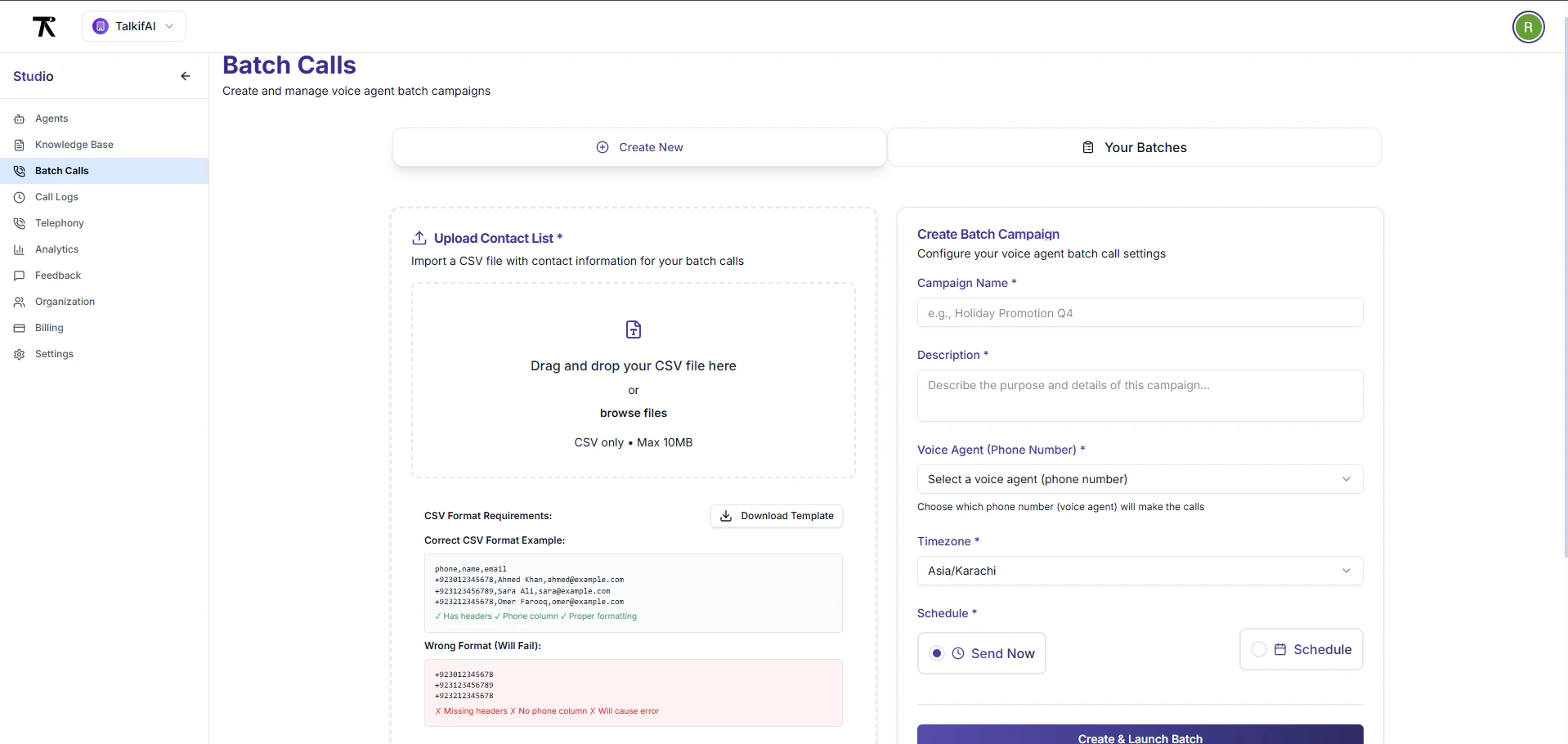 **Form Fields:**
| Field | Required | Description |
| ------------------------- | -------- | ---------------------------------------------------- |
| **Batch Name** | ✅ | Descriptive name (e.g., "January Payment Reminders") |
| **Description** | ❌ | Internal notes about the campaign |
| **Agent** | ✅ | Voice agent that will handle calls |
| **From Phone Number** | ✅ | Your registered phone number to call from |
| **Concurrent Call Limit** | ❌ | Max parallel calls (default: 5, max: 50) |
| **Max Retry Attempts** | ❌ | Retry failed calls (default: 3, max: 10) |
| **Schedule Start Time** | ❌ | When to start (leave empty for immediate) |
| **Timezone** | ❌ | For scheduled batches (default: UTC) |
**Agent Selection:**
* Dropdown shows all voice agents in your organization
* Shows agent name and architecture
* Only Pipeline/Realtime agents (text agents can't make calls)
**From Phone Number:**
* Must be a registered phone number in your organization
* Must have outbound trunk configured
* Dropdown shows all available numbers
**Concurrency Settings:**
* **Default:** 5 concurrent calls
* **Range:** 1-50
* Higher = faster completion but more load
* Recommended: 5-10 for most campaigns
**Retry Settings:**
* **Default:** 3 attempts
* **Retryable statuses:** `no_answer`, `busy`, `timeout`
* **Retry delays:** 5 min (attempt 2), 30 min (attempt 3)
### Step 4: Schedule (Optional)
**Immediate Start:**
* Leave "Schedule Start Time" empty
* Batch starts immediately after creation
**Scheduled Start:**
1. Click calendar icon
2. Select date from calendar
3. Select time (HH:MM format)
4. Select timezone
5. System converts to UTC
**Calling Hours Compliance:** Ensure scheduled times comply with local regulations (e.g., TCPA in US prohibits calls before 8 AM or after 9 PM local time).
### Step 5: Review & Create
**Review Checklist:**
* ✅ CSV validated successfully
* ✅ Batch name entered
* ✅ Agent selected
* ✅ From number selected
* ✅ Concurrency set (default: 5)
* ✅ Retry attempts set (default: 3)
* ✅ Schedule time set (or immediate)
**Click "Create & Launch Batch":**
* Button shows loading spinner
* Backend validates all data
* Creates batch job in database
* Enqueues contacts in Redis
* Redirects to batch detail page
**Success Response:**
```json theme={null}
{
"success": true,
"batchJobId": "batch_xyz789",
"totalContacts": 150,
"estimatedDuration": "45 minutes",
"estimatedCost": "$22.50",
"status": "running",
"message": "Batch campaign created successfully"
}
```
***
## Batch Statuses
| Status | Color | Description |
| ------------- | ------ | --------------------------- |
| **Pending** | Gray | Created but not started yet |
| **Scheduled** | Purple | Waiting for scheduled time |
| **Running** | Blue | Actively calling contacts |
| **Paused** | Amber | Temporarily stopped by user |
| **Completed** | Green | All contacts processed |
| **Failed** | Red | System error occurred |
| **Cancelled** | Gray | Manually cancelled by user |
***
## Viewing Batch Details
### Navigation
**URL:** `/batch-calls/{batchId}`
**Access:** Click any batch in the list OR go directly via URL
### Batch Detail Page Layout
#### Section 1: Overview Cards
**Form Fields:**
| Field | Required | Description |
| ------------------------- | -------- | ---------------------------------------------------- |
| **Batch Name** | ✅ | Descriptive name (e.g., "January Payment Reminders") |
| **Description** | ❌ | Internal notes about the campaign |
| **Agent** | ✅ | Voice agent that will handle calls |
| **From Phone Number** | ✅ | Your registered phone number to call from |
| **Concurrent Call Limit** | ❌ | Max parallel calls (default: 5, max: 50) |
| **Max Retry Attempts** | ❌ | Retry failed calls (default: 3, max: 10) |
| **Schedule Start Time** | ❌ | When to start (leave empty for immediate) |
| **Timezone** | ❌ | For scheduled batches (default: UTC) |
**Agent Selection:**
* Dropdown shows all voice agents in your organization
* Shows agent name and architecture
* Only Pipeline/Realtime agents (text agents can't make calls)
**From Phone Number:**
* Must be a registered phone number in your organization
* Must have outbound trunk configured
* Dropdown shows all available numbers
**Concurrency Settings:**
* **Default:** 5 concurrent calls
* **Range:** 1-50
* Higher = faster completion but more load
* Recommended: 5-10 for most campaigns
**Retry Settings:**
* **Default:** 3 attempts
* **Retryable statuses:** `no_answer`, `busy`, `timeout`
* **Retry delays:** 5 min (attempt 2), 30 min (attempt 3)
### Step 4: Schedule (Optional)
**Immediate Start:**
* Leave "Schedule Start Time" empty
* Batch starts immediately after creation
**Scheduled Start:**
1. Click calendar icon
2. Select date from calendar
3. Select time (HH:MM format)
4. Select timezone
5. System converts to UTC
**Calling Hours Compliance:** Ensure scheduled times comply with local regulations (e.g., TCPA in US prohibits calls before 8 AM or after 9 PM local time).
### Step 5: Review & Create
**Review Checklist:**
* ✅ CSV validated successfully
* ✅ Batch name entered
* ✅ Agent selected
* ✅ From number selected
* ✅ Concurrency set (default: 5)
* ✅ Retry attempts set (default: 3)
* ✅ Schedule time set (or immediate)
**Click "Create & Launch Batch":**
* Button shows loading spinner
* Backend validates all data
* Creates batch job in database
* Enqueues contacts in Redis
* Redirects to batch detail page
**Success Response:**
```json theme={null}
{
"success": true,
"batchJobId": "batch_xyz789",
"totalContacts": 150,
"estimatedDuration": "45 minutes",
"estimatedCost": "$22.50",
"status": "running",
"message": "Batch campaign created successfully"
}
```
***
## Batch Statuses
| Status | Color | Description |
| ------------- | ------ | --------------------------- |
| **Pending** | Gray | Created but not started yet |
| **Scheduled** | Purple | Waiting for scheduled time |
| **Running** | Blue | Actively calling contacts |
| **Paused** | Amber | Temporarily stopped by user |
| **Completed** | Green | All contacts processed |
| **Failed** | Red | System error occurred |
| **Cancelled** | Gray | Manually cancelled by user |
***
## Viewing Batch Details
### Navigation
**URL:** `/batch-calls/{batchId}`
**Access:** Click any batch in the list OR go directly via URL
### Batch Detail Page Layout
#### Section 1: Overview Cards
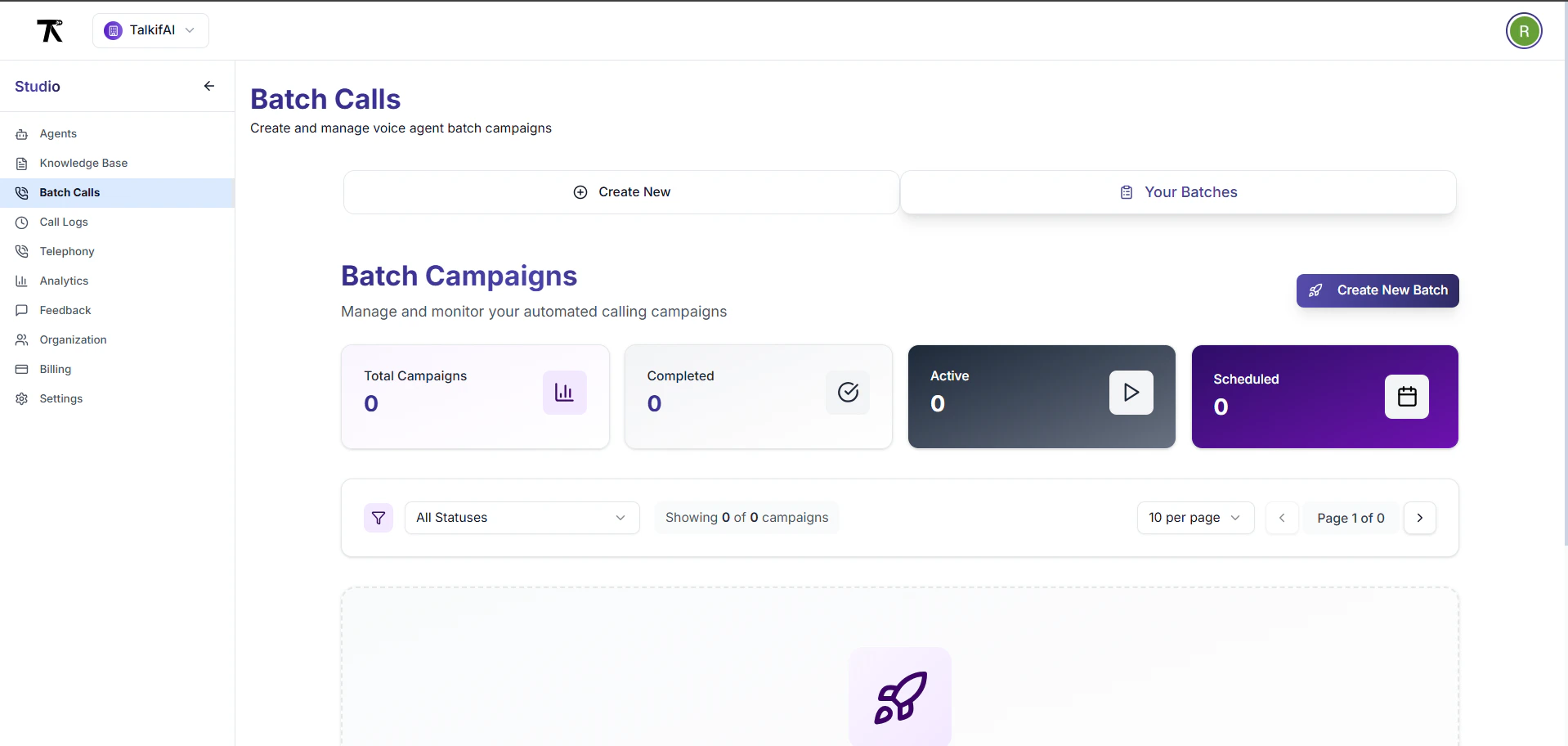 **4 Summary Cards:**
1. **Total Contacts**
* Total number in batch
* Icon: Users
2. **Successful Calls**
* Completed successfully
* Success rate percentage
* Icon: CheckCircle
3. **Failed Calls**
* Failed after all retries
* Failure rate percentage
* Icon: XCircle
4. **Processing**
* Currently in progress
* Pending + Running
* Icon: Clock
#### Section 2: Batch Information
**Details Card:**
| Field | Example |
| ------------------------ | ------------------------------ |
| **Batch ID** | `batch_xyz789` |
| **Name** | January Payment Reminders |
| **Description** | Q4 payment collection campaign |
| **Status** | Running |
| **Agent** | Payment Collection Agent |
| **From Number** | +12025550100 |
| **Concurrent Limit** | 5 |
| **Max Attempts** | 3 |
| **Created** | Jan 15, 2024 10:30 AM |
| **Started** | Jan 15, 2024 10:31 AM |
| **Completed** | — (ongoing) |
| **Estimated Completion** | Jan 15, 2024 11:15 AM |
#### Section 3: Contacts List
**Table Columns:**
| Column | Description |
| ------------------ | -------------------------- |
| **Contact** | Name + phone number |
| **Status** | Current call status |
| **Attempts** | X / Max attempts |
| **Last Attempt** | When last called |
| **Next Retry** | When retry scheduled |
| **Duration** | Call length (if completed) |
| **Failure Reason** | Error message (if failed) |
**Contact Statuses:**
| Status | Color | Description |
| ------------------ | ------ | -------------------- |
| **Pending** | Gray | Not called yet |
| **Queued** | Purple | In retry queue |
| **Dialing** | Blue | Initiating call |
| **Connected** | Cyan | Call connected |
| **Completed** | Green | Successful call |
| **Failed** | Red | Final failure |
| **Busy** | Yellow | Line was busy |
| **No Answer** | Orange | No one answered |
| **Timeout** | Orange | Call timed out |
| **Invalid Number** | Red | Invalid phone format |
| **Blocked** | Red | Number blocked calls |
| **Carrier Error** | Amber | Telecom error |
**Pagination:**
* Default: 50 contacts per page
* Options: 25, 50, 100
* Shows: "Showing X of Y contacts"
**Search:**
* Search by phone number
* Search by name
* Search by status
**Filter:**
* Filter by status
* Filter by attempt count
* Filter by date range
***
## Managing Batches
### Batch Actions
Available actions depend on batch status:
| Action | Pending | Scheduled | Running | Paused | Completed | Failed |
| -------------- | ------- | --------- | ------- | ------ | --------- | ------ |
| **View** | ✅ | ✅ | ✅ | ✅ | ✅ | ✅ |
| **Pause** | ❌ | ❌ | ✅ | ❌ | ❌ | ❌ |
| **Resume** | ❌ | ❌ | ❌ | ✅ | ❌ | ❌ |
| **Cancel** | ✅ | ✅ | ✅ | ✅ | ❌ | ❌ |
| **Delete** | ✅ | ✅ | ❌ | ✅ | ✅ | ✅ |
| **Reschedule** | ✅ | ✅ | ❌ | ❌ | ❌ | ❌ |
| **Export** | ❌ | ❌ | ❌ | ❌ | ✅ | ✅ |
**Export Feature:** Export functionality is available for Completed and Failed batches. Export options include CSV (all contacts, successful only, or failed only).
### Pause a Batch
**When:** Temporarily stop calling (e.g., outside business hours)
**How:**
1. Go to batch detail page
2. Click **Actions** (⋮) → **Pause**
3. Confirm in dialog
4. Status changes to "Paused"
5. Running calls complete normally
6. Pending calls wait in queue
**Effect:**
* No new calls initiated
* Contacts in queue preserved
* Can resume later
### Resume a Batch
**When:** Continue a paused batch
**How:**
1. Go to batch detail page
2. Click **Actions** (⋮) → **Resume**
3. Confirm in dialog
4. Status changes to "Running"
5. Queue processing resumes
### Cancel a Batch
**When:** Stop batch permanently
**How:**
1. Go to batch detail page
2. Click **Actions** (⋮) → **Cancel**
3. Confirm in dialog ("This action cannot be undone")
4. Status changes to "Cancelled"
5. Running calls complete
6. Pending calls not processed
**Effect:**
* Irreversible action
* Contacts in queue discarded
* Can export results before cancelling
### Delete a Batch
**When:** Remove batch from system
**How:**
1. Go to batch list page
2. Click **Actions** (⋮) → **Delete**
3. Confirm in dialog
4. Batch and all contacts deleted
**Permanent Deletion:** This action cannot be undone. Export data first if you need to keep records.
### Reschedule a Batch
**When:** Change scheduled start time
**How:**
1. Go to batch detail page
2. Click **Actions** (⋮) → **Reschedule**
3. Opens reschedule dialog:
* Select new date
* Select new time
* Select timezone
4. Click **Confirm**
5. Scheduled time updated
**Restrictions:**
* Only for Pending/Scheduled batches
* Cannot reschedule running batches
* New time must be in future
**API Endpoint:**
```bash theme={null}
POST /batch/jobs/{batchId}/reschedule?scheduledStartTime={time}&timezone={tz}
Authorization: Bearer YOUR_SESSION_TOKEN
```
**Response:**
```json theme={null}
{
"success": true,
"message": "Batch job rescheduled successfully",
"scheduledStartTime": "2024-01-20T14:00:00Z"
}
```
### Export Batch
**When:** Download batch results for analysis or reporting
**How:**
1. Go to batch detail page (Completed or Failed status)
2. Click **Export** button
3. Select export options:
* Format: CSV
* Filter: All / Successful / Failed
4. Download CSV file
**Export Includes:**
* Contact name
* Phone number
* Call status
* Number of attempts
* Call duration
* Failure reason (if failed)
* Call timestamp
**API Endpoint:**
```bash theme={null}
POST /batch/jobs/{batchId}/export
Authorization: Bearer YOUR_SESSION_TOKEN
Content-Type: application/json
{
"format": "csv",
"filter": "all"
}
```
**Response:** CSV file download
**Export Availability:** Export is only available for batches with Completed or Failed status. Running batches must complete before export.
***
## Retry Behavior
### Automatic Retry Logic
Failed calls are automatically retried:
| Attempt | Timing | Retryable Statuses |
| -------------------- | ------------------------------ | ------------------------------ |
| **Attempt 1** | Immediate | — |
| **Attempt 2** | After 5 minutes | `no_answer`, `busy`, `timeout` |
| **Attempt 3** | After 30 minutes | `no_answer`, `busy`, `timeout` |
| **After 3 failures** | Marked as `permanently_failed` | — |
### Non-Retryable Failures
These statuses are NOT retried:
| Status | Reason |
| ---------------- | --------------------------- |
| `invalid_number` | Phone number format invalid |
| `blocked` | Number blocks calls |
| `carrier_error` | Telecom provider error |
| `agent_error` | Agent configuration error |
### Retry Queue
**How it works:**
1. Failed contact added to retry queue
2. Status changes to "Queued"
3. Shows "Next Retry At" time
4. Worker picks up at scheduled time
5. Attempts counter increments
**View Retry Queue:**
* Filter contacts by status = "Queued"
* Shows retry attempt number
* Shows scheduled retry time
***
## Concurrency Control
### Two-Level Concurrency
TalkifAI uses sophisticated concurrency management:
```
Level 1: Organization Limit
└─ Max concurrent calls across ALL batches (default: 5)
Level 2: Batch Limit
└─ Max concurrent calls within single batch (default: 5)
```
### Example Scenario
**Setup:**
* Org limit: 5 concurrent calls
* Batch A limit: 5 concurrent
* Batch B limit: 5 concurrent
**At any moment:**
* Max 5 calls total across both batches
* NOT 10 calls (5+5)
**Behavior:**
* If Batch A is using 3 calls
* Batch B can only use 2 calls
* Batch B waits if it needs more
### Adjusting Concurrency
**Increase for Faster Completion:**
```
Concurrent Calls: 10-20
Best for: Large batches (1000+ contacts)
Trade-off: More load on infrastructure
```
**Decrease for Stability:**
```
Concurrent Calls: 3-5
Best for: Small batches (<100 contacts)
Trade-off: Slower completion
```
***
## Cost Estimation
### Pricing Model
**Per-Call Pricing:**
* Base cost: \$0.05/minute (infrastructure)
* LLM cost: \$0.015/minute (GPT-4o-mini)
* STT cost: \$0.003/minute (Deepgram)
* TTS cost: \$0.005/minute (Cartesia)
**Estimated Total:** \~\$0.073/minute
### Cost Calculator
**Formula:**
```
Total Cost = Contacts × Avg Duration × Rate
Example:
100 contacts × 3 minutes × $0.073 = $21.90
```
**In UI:**
* Shows estimated cost before creation
* Based on average 3-minute calls
* Updates as batch progresses
* Shows actual cost in analytics
***
## Analytics & Reporting
### Real-Time Metrics
**Live Dashboard:**
* Calls completed (real-time counter)
* Success rate percentage
* Average call duration
* Cost incurred so far
* Estimated completion time
### Post-Completion Reports
**Summary Statistics:**
* Total contacts
* Successful calls
* Failed calls
* Success rate
* Average duration
* Total cost
* Retry statistics
**Export Options:**
* CSV export (all contacts)
* CSV export (successful only)
* CSV export (failed only)
* PDF report (summary)
### Contact-Level Analytics
**Per-Contact Data:**
* Call start time
* Call end time
* Duration
* Number of attempts
* Final status
* Failure reason (if failed)
* Recording URL (if enabled)
* Transcript (if enabled)
***
## Best Practices
Before running 10,000 calls, test with 10-20 contacts to verify agent behavior and CSV format.
Schedule calls during business hours (9 AM - 6 PM local time). Use timezone-aware scheduling.
Start with 5 concurrent calls. Increase to 10-20 for large batches. Monitor system load.
Remove duplicates, validate phone numbers, and update invalid contacts before uploading.
Check failure reasons. High invalid\_number rate indicates data quality issues.
Name batches clearly: "2024-01-Payment-Reminders" not "Test Batch 1".
***
## Troubleshooting
**Error:** "CSV must have 'phone' column"
**Solution:**
1. Check first row contains headers
2. Ensure one column is named `phone` (case-insensitive)
3. Verify phone numbers are in E.164 format (+1234567890)
4. Remove any empty rows or columns
**Template:**
```csv theme={null}
phone,name,email
+12025550101,John Smith,john@example.com
```
**Status:** Stuck in "Pending"
**Check:**
1. Organization has available credits
2. From phone number has outbound trunk configured
3. Agent is active and uses Pipeline/Realtime architecture
4. Concurrency limit not exceeded by other batches
**Fix:** Check batch detail page for error messages
**Problem:** >20% calls failing
**Common Causes:**
* Invalid phone numbers → Clean your data
* Carrier blocking → Rotate phone numbers
* No answers → Adjust calling hours
* Agent errors → Check agent configuration
**Solution:** Export failed contacts, review failure reasons, fix data, create new batch
**Problem:** Taking longer than estimated
**Solutions:**
1. Increase concurrent call limit (10-20)
2. Check organization concurrency limit
3. Verify no other batches competing for capacity
4. Check system health (Redis, workers)
**Status:** Shows "Queued" but not calling
**Check:**
1. Batch status is "Running" (not "Paused")
2. Concurrency limit not maxed out
3. Redis worker is running
4. Retry time hasn't passed yet
**Fix:** Refresh page, check batch status, contact support if persists
***
## API Reference
### Create Batch
```bash theme={null}
POST /batch/create
Content-Type: multipart/form-data
file: [CSV file]
fromPhoneNumberId: string (required)
name: string (required)
description: string (optional)
concurrentCallLimit: number (default: 5)
maxAttempts: number (default: 3)
scheduledStartTime: ISO 8601 (optional)
timezone: string (default: UTC)
```
### Get Batch List
```bash theme={null}
GET /batch/list?page=1&pageSize=50&status=all
Authorization: Bearer YOUR_SESSION_TOKEN
```
### Get Batch Detail
```bash theme={null}
GET /batch/{batchId}
Authorization: Bearer YOUR_SESSION_TOKEN
```
### Pause Batch
```bash theme={null}
POST /batch/{batchId}/pause
Authorization: Bearer YOUR_SESSION_TOKEN
```
### Resume Batch
```bash theme={null}
POST /batch/{batchId}/resume
Authorization: Bearer YOUR_SESSION_TOKEN
```
### Cancel Batch
```bash theme={null}
POST /batch/{batchId}/cancel
Authorization: Bearer YOUR_SESSION_TOKEN
```
### Delete Batch
```bash theme={null}
DELETE /batch/{batchId}
Authorization: Bearer YOUR_SESSION_TOKEN
```
### Reschedule Batch
```bash theme={null}
POST /batch/jobs/{batchId}/reschedule?scheduledStartTime={time}&timezone={tz}
Authorization: Bearer YOUR_SESSION_TOKEN
```
**Parameters:**
* `scheduledStartTime` — ISO 8601 datetime (e.g., `2024-01-20T14:00:00`)
* `timezone` — IANA timezone (e.g., `America/New_York`)
**Response:**
```json theme={null}
{
"success": true,
"message": "Batch job rescheduled successfully",
"scheduledStartTime": "2024-01-20T14:00:00Z"
}
```
### Export Batch
```bash theme={null}
POST /batch/jobs/{batchId}/export
Authorization: Bearer YOUR_SESSION_TOKEN
Content-Type: application/json
{
"format": "csv",
"filter": "all" // or "successful", "failed"
}
```
**Response:** CSV file download
***
## Related Documentation
* [Telephony](/platform/telephony) — Configure phone numbers and SIP trunks
* [Outbound Calling](/platform/telephony#outbound-calling) — Setup guide for outbound calls
* [Analytics](/platform/analytics) — View usage metrics and costs
* [Agent Configuration](/platform/agent-settings) — Configure agents for batch calling
**4 Summary Cards:**
1. **Total Contacts**
* Total number in batch
* Icon: Users
2. **Successful Calls**
* Completed successfully
* Success rate percentage
* Icon: CheckCircle
3. **Failed Calls**
* Failed after all retries
* Failure rate percentage
* Icon: XCircle
4. **Processing**
* Currently in progress
* Pending + Running
* Icon: Clock
#### Section 2: Batch Information
**Details Card:**
| Field | Example |
| ------------------------ | ------------------------------ |
| **Batch ID** | `batch_xyz789` |
| **Name** | January Payment Reminders |
| **Description** | Q4 payment collection campaign |
| **Status** | Running |
| **Agent** | Payment Collection Agent |
| **From Number** | +12025550100 |
| **Concurrent Limit** | 5 |
| **Max Attempts** | 3 |
| **Created** | Jan 15, 2024 10:30 AM |
| **Started** | Jan 15, 2024 10:31 AM |
| **Completed** | — (ongoing) |
| **Estimated Completion** | Jan 15, 2024 11:15 AM |
#### Section 3: Contacts List
**Table Columns:**
| Column | Description |
| ------------------ | -------------------------- |
| **Contact** | Name + phone number |
| **Status** | Current call status |
| **Attempts** | X / Max attempts |
| **Last Attempt** | When last called |
| **Next Retry** | When retry scheduled |
| **Duration** | Call length (if completed) |
| **Failure Reason** | Error message (if failed) |
**Contact Statuses:**
| Status | Color | Description |
| ------------------ | ------ | -------------------- |
| **Pending** | Gray | Not called yet |
| **Queued** | Purple | In retry queue |
| **Dialing** | Blue | Initiating call |
| **Connected** | Cyan | Call connected |
| **Completed** | Green | Successful call |
| **Failed** | Red | Final failure |
| **Busy** | Yellow | Line was busy |
| **No Answer** | Orange | No one answered |
| **Timeout** | Orange | Call timed out |
| **Invalid Number** | Red | Invalid phone format |
| **Blocked** | Red | Number blocked calls |
| **Carrier Error** | Amber | Telecom error |
**Pagination:**
* Default: 50 contacts per page
* Options: 25, 50, 100
* Shows: "Showing X of Y contacts"
**Search:**
* Search by phone number
* Search by name
* Search by status
**Filter:**
* Filter by status
* Filter by attempt count
* Filter by date range
***
## Managing Batches
### Batch Actions
Available actions depend on batch status:
| Action | Pending | Scheduled | Running | Paused | Completed | Failed |
| -------------- | ------- | --------- | ------- | ------ | --------- | ------ |
| **View** | ✅ | ✅ | ✅ | ✅ | ✅ | ✅ |
| **Pause** | ❌ | ❌ | ✅ | ❌ | ❌ | ❌ |
| **Resume** | ❌ | ❌ | ❌ | ✅ | ❌ | ❌ |
| **Cancel** | ✅ | ✅ | ✅ | ✅ | ❌ | ❌ |
| **Delete** | ✅ | ✅ | ❌ | ✅ | ✅ | ✅ |
| **Reschedule** | ✅ | ✅ | ❌ | ❌ | ❌ | ❌ |
| **Export** | ❌ | ❌ | ❌ | ❌ | ✅ | ✅ |
**Export Feature:** Export functionality is available for Completed and Failed batches. Export options include CSV (all contacts, successful only, or failed only).
### Pause a Batch
**When:** Temporarily stop calling (e.g., outside business hours)
**How:**
1. Go to batch detail page
2. Click **Actions** (⋮) → **Pause**
3. Confirm in dialog
4. Status changes to "Paused"
5. Running calls complete normally
6. Pending calls wait in queue
**Effect:**
* No new calls initiated
* Contacts in queue preserved
* Can resume later
### Resume a Batch
**When:** Continue a paused batch
**How:**
1. Go to batch detail page
2. Click **Actions** (⋮) → **Resume**
3. Confirm in dialog
4. Status changes to "Running"
5. Queue processing resumes
### Cancel a Batch
**When:** Stop batch permanently
**How:**
1. Go to batch detail page
2. Click **Actions** (⋮) → **Cancel**
3. Confirm in dialog ("This action cannot be undone")
4. Status changes to "Cancelled"
5. Running calls complete
6. Pending calls not processed
**Effect:**
* Irreversible action
* Contacts in queue discarded
* Can export results before cancelling
### Delete a Batch
**When:** Remove batch from system
**How:**
1. Go to batch list page
2. Click **Actions** (⋮) → **Delete**
3. Confirm in dialog
4. Batch and all contacts deleted
**Permanent Deletion:** This action cannot be undone. Export data first if you need to keep records.
### Reschedule a Batch
**When:** Change scheduled start time
**How:**
1. Go to batch detail page
2. Click **Actions** (⋮) → **Reschedule**
3. Opens reschedule dialog:
* Select new date
* Select new time
* Select timezone
4. Click **Confirm**
5. Scheduled time updated
**Restrictions:**
* Only for Pending/Scheduled batches
* Cannot reschedule running batches
* New time must be in future
**API Endpoint:**
```bash theme={null}
POST /batch/jobs/{batchId}/reschedule?scheduledStartTime={time}&timezone={tz}
Authorization: Bearer YOUR_SESSION_TOKEN
```
**Response:**
```json theme={null}
{
"success": true,
"message": "Batch job rescheduled successfully",
"scheduledStartTime": "2024-01-20T14:00:00Z"
}
```
### Export Batch
**When:** Download batch results for analysis or reporting
**How:**
1. Go to batch detail page (Completed or Failed status)
2. Click **Export** button
3. Select export options:
* Format: CSV
* Filter: All / Successful / Failed
4. Download CSV file
**Export Includes:**
* Contact name
* Phone number
* Call status
* Number of attempts
* Call duration
* Failure reason (if failed)
* Call timestamp
**API Endpoint:**
```bash theme={null}
POST /batch/jobs/{batchId}/export
Authorization: Bearer YOUR_SESSION_TOKEN
Content-Type: application/json
{
"format": "csv",
"filter": "all"
}
```
**Response:** CSV file download
**Export Availability:** Export is only available for batches with Completed or Failed status. Running batches must complete before export.
***
## Retry Behavior
### Automatic Retry Logic
Failed calls are automatically retried:
| Attempt | Timing | Retryable Statuses |
| -------------------- | ------------------------------ | ------------------------------ |
| **Attempt 1** | Immediate | — |
| **Attempt 2** | After 5 minutes | `no_answer`, `busy`, `timeout` |
| **Attempt 3** | After 30 minutes | `no_answer`, `busy`, `timeout` |
| **After 3 failures** | Marked as `permanently_failed` | — |
### Non-Retryable Failures
These statuses are NOT retried:
| Status | Reason |
| ---------------- | --------------------------- |
| `invalid_number` | Phone number format invalid |
| `blocked` | Number blocks calls |
| `carrier_error` | Telecom provider error |
| `agent_error` | Agent configuration error |
### Retry Queue
**How it works:**
1. Failed contact added to retry queue
2. Status changes to "Queued"
3. Shows "Next Retry At" time
4. Worker picks up at scheduled time
5. Attempts counter increments
**View Retry Queue:**
* Filter contacts by status = "Queued"
* Shows retry attempt number
* Shows scheduled retry time
***
## Concurrency Control
### Two-Level Concurrency
TalkifAI uses sophisticated concurrency management:
```
Level 1: Organization Limit
└─ Max concurrent calls across ALL batches (default: 5)
Level 2: Batch Limit
└─ Max concurrent calls within single batch (default: 5)
```
### Example Scenario
**Setup:**
* Org limit: 5 concurrent calls
* Batch A limit: 5 concurrent
* Batch B limit: 5 concurrent
**At any moment:**
* Max 5 calls total across both batches
* NOT 10 calls (5+5)
**Behavior:**
* If Batch A is using 3 calls
* Batch B can only use 2 calls
* Batch B waits if it needs more
### Adjusting Concurrency
**Increase for Faster Completion:**
```
Concurrent Calls: 10-20
Best for: Large batches (1000+ contacts)
Trade-off: More load on infrastructure
```
**Decrease for Stability:**
```
Concurrent Calls: 3-5
Best for: Small batches (<100 contacts)
Trade-off: Slower completion
```
***
## Cost Estimation
### Pricing Model
**Per-Call Pricing:**
* Base cost: \$0.05/minute (infrastructure)
* LLM cost: \$0.015/minute (GPT-4o-mini)
* STT cost: \$0.003/minute (Deepgram)
* TTS cost: \$0.005/minute (Cartesia)
**Estimated Total:** \~\$0.073/minute
### Cost Calculator
**Formula:**
```
Total Cost = Contacts × Avg Duration × Rate
Example:
100 contacts × 3 minutes × $0.073 = $21.90
```
**In UI:**
* Shows estimated cost before creation
* Based on average 3-minute calls
* Updates as batch progresses
* Shows actual cost in analytics
***
## Analytics & Reporting
### Real-Time Metrics
**Live Dashboard:**
* Calls completed (real-time counter)
* Success rate percentage
* Average call duration
* Cost incurred so far
* Estimated completion time
### Post-Completion Reports
**Summary Statistics:**
* Total contacts
* Successful calls
* Failed calls
* Success rate
* Average duration
* Total cost
* Retry statistics
**Export Options:**
* CSV export (all contacts)
* CSV export (successful only)
* CSV export (failed only)
* PDF report (summary)
### Contact-Level Analytics
**Per-Contact Data:**
* Call start time
* Call end time
* Duration
* Number of attempts
* Final status
* Failure reason (if failed)
* Recording URL (if enabled)
* Transcript (if enabled)
***
## Best Practices
Before running 10,000 calls, test with 10-20 contacts to verify agent behavior and CSV format.
Schedule calls during business hours (9 AM - 6 PM local time). Use timezone-aware scheduling.
Start with 5 concurrent calls. Increase to 10-20 for large batches. Monitor system load.
Remove duplicates, validate phone numbers, and update invalid contacts before uploading.
Check failure reasons. High invalid\_number rate indicates data quality issues.
Name batches clearly: "2024-01-Payment-Reminders" not "Test Batch 1".
***
## Troubleshooting
**Error:** "CSV must have 'phone' column"
**Solution:**
1. Check first row contains headers
2. Ensure one column is named `phone` (case-insensitive)
3. Verify phone numbers are in E.164 format (+1234567890)
4. Remove any empty rows or columns
**Template:**
```csv theme={null}
phone,name,email
+12025550101,John Smith,john@example.com
```
**Status:** Stuck in "Pending"
**Check:**
1. Organization has available credits
2. From phone number has outbound trunk configured
3. Agent is active and uses Pipeline/Realtime architecture
4. Concurrency limit not exceeded by other batches
**Fix:** Check batch detail page for error messages
**Problem:** >20% calls failing
**Common Causes:**
* Invalid phone numbers → Clean your data
* Carrier blocking → Rotate phone numbers
* No answers → Adjust calling hours
* Agent errors → Check agent configuration
**Solution:** Export failed contacts, review failure reasons, fix data, create new batch
**Problem:** Taking longer than estimated
**Solutions:**
1. Increase concurrent call limit (10-20)
2. Check organization concurrency limit
3. Verify no other batches competing for capacity
4. Check system health (Redis, workers)
**Status:** Shows "Queued" but not calling
**Check:**
1. Batch status is "Running" (not "Paused")
2. Concurrency limit not maxed out
3. Redis worker is running
4. Retry time hasn't passed yet
**Fix:** Refresh page, check batch status, contact support if persists
***
## API Reference
### Create Batch
```bash theme={null}
POST /batch/create
Content-Type: multipart/form-data
file: [CSV file]
fromPhoneNumberId: string (required)
name: string (required)
description: string (optional)
concurrentCallLimit: number (default: 5)
maxAttempts: number (default: 3)
scheduledStartTime: ISO 8601 (optional)
timezone: string (default: UTC)
```
### Get Batch List
```bash theme={null}
GET /batch/list?page=1&pageSize=50&status=all
Authorization: Bearer YOUR_SESSION_TOKEN
```
### Get Batch Detail
```bash theme={null}
GET /batch/{batchId}
Authorization: Bearer YOUR_SESSION_TOKEN
```
### Pause Batch
```bash theme={null}
POST /batch/{batchId}/pause
Authorization: Bearer YOUR_SESSION_TOKEN
```
### Resume Batch
```bash theme={null}
POST /batch/{batchId}/resume
Authorization: Bearer YOUR_SESSION_TOKEN
```
### Cancel Batch
```bash theme={null}
POST /batch/{batchId}/cancel
Authorization: Bearer YOUR_SESSION_TOKEN
```
### Delete Batch
```bash theme={null}
DELETE /batch/{batchId}
Authorization: Bearer YOUR_SESSION_TOKEN
```
### Reschedule Batch
```bash theme={null}
POST /batch/jobs/{batchId}/reschedule?scheduledStartTime={time}&timezone={tz}
Authorization: Bearer YOUR_SESSION_TOKEN
```
**Parameters:**
* `scheduledStartTime` — ISO 8601 datetime (e.g., `2024-01-20T14:00:00`)
* `timezone` — IANA timezone (e.g., `America/New_York`)
**Response:**
```json theme={null}
{
"success": true,
"message": "Batch job rescheduled successfully",
"scheduledStartTime": "2024-01-20T14:00:00Z"
}
```
### Export Batch
```bash theme={null}
POST /batch/jobs/{batchId}/export
Authorization: Bearer YOUR_SESSION_TOKEN
Content-Type: application/json
{
"format": "csv",
"filter": "all" // or "successful", "failed"
}
```
**Response:** CSV file download
***
## Related Documentation
* [Telephony](/platform/telephony) — Configure phone numbers and SIP trunks
* [Outbound Calling](/platform/telephony#outbound-calling) — Setup guide for outbound calls
* [Analytics](/platform/analytics) — View usage metrics and costs
* [Agent Configuration](/platform/agent-settings) — Configure agents for batch calling